Someday you may need to install a driver on a windows system. If you are in an enterprise environment, you may have a few requirements. First, you don't want the end-user prompted to install drivers. They may actually do it and end up installing something you don't want them to install. That brings us to a second need, a silent install. We don't want the user to be interupted. Lastly, it is important to have some flexibility on what were installing. For instance, maybe we only want to install the driver if the device is installed. OR maybe we want to pre-install a driver for later use. Whatever our case may be, DPInst is a good solution in most cases.
First things first, you can download DPInst as part of the Driver Installation Framework from Microsoft's WHDC site. You may instead want to install the full Windows Driver Kit (WDK) which will include future updates to DPInst.
You can refer to the command-line switches for more info, but here are some of the more useful switches.
/path
This switch changes the DPInst working directory. Normally DPInst will only search the directory it is ran from.
/s
Switches to silent mode. This will quietly install drivers.
/LM
Uses Legacy mode to install drivers. That allows you to install drivers that aren't signed.
/sh
Scans your hardware and installs only if the device is present and the new driver is better than what is already installed.
/se /sa /sw
These are for suppressing EULA, Add/Remove Programs Entry, and the Wizard in that order. The silent switch should take care of the first and last switch. The Add/Remove Programs Entry you may want to remove.
Showing posts with label desktop engineer. Show all posts
Showing posts with label desktop engineer. Show all posts


My five VBScript 'best practices'
I've been programming in VBScript for a while now. Over that time I've seen some things that for better or worse made me take note. I thought that I would share those, in an attempt to at worst open a dialogue on some level and at best convince some VBScripters to slightly modify their actions.
1. Misuse of On Error Resume Next
The On Error Resume Next statement can be quite useful, but all too often it finds its way to the top of a VBScript. Doing this will basically render the entire script free of errors. The statement does have its uses though. Lets say that I want to open a file for writing. Lets consider the things that could go wrong
On Error Resume Next
If Err Then
HandleError
Err.Clear
End If
On Error Goto 0
What happens here is that everything between the On Error Resume Next and the On Error Goto 0 statement don't raise errors. Everything before and after will still cause issues. We can test for errors by checking the Err variable. It returns true for non-zero numbers. So if we have an error code we enter the condition and handle the error. Once done handling our error we call Err.Clear. This clears out the error code so when we test it later in the code we don't get this error. The last statement simply turns error suppression back off.
Also, if you call On Error Resume Next in a function or subroutine then it will only stay in effect for that function and all calls made by that function.
I prefer the second option, just because I like knowing where error suppression starts and stops. With the second option, you can turn on error suppression in one function, call a second function and still have error suppression turned on.
My main point in all of this, is that you have to know where your script is failing. Covering up the problems will curse you sooner or later. Its ok to use error suppression, but so long as you are handling the problems when they arise.
2. Not using Option Explicit
I'd almost like to say as a general rule, you should take both this and the previous rule together and for every script that has On Error Resume Next as the first line of code, should be replaced with Option Explicit. In fact most every script should have Option Explicit as the first line.
What Option Explicit will do for you, is make sure your variables are declared. It does this, by not allowing undeclared variables in your code. So if I said
Option Explicit
i = 0
I'd get an error of "Variable is undefined 'i'"
I'd have to add
Option Explicit
dim i
i = 0
You can add multiple variables by separating them by commas
dim LastName, FirstName, BirthDate
All this will save you the hassle of debugging your code only to find out that you mistyped your variable name.
This may seem like a lot of work to do. Ultimately though, it is only really 2 lines of code. Once to turn this option on and a second to declare your variables. What you gain is completely eliminating one of the more common reasons why scripts fail.
3. Don't repeat yourself
I've seen a lot of scripts that are three or even four times longer than they need to be. This happens because they are simply copying and pasting their code and only modifying one or two parts. Whenever you find yourself in this situation, you should immediately start thinking of sub routines. Sometimes you may not notice until after you've written your script. In those cases, if you ever think that you'll need to modify this script you should go back and refactor it correctly.
Here is an example of what we can refactor.
ItemToWrite = Items(ItemOne)
WshShell.RegWrite "HKLM\Software\MyProduct\ItemOne", ItemToWrite
ItemToWrite = Items(ItemTwo)
WshShell.RegWrite "HKLM\Software\MyProduct\ItemTwo", ItemToWrite
ItemToWrite = Items(ItemThree)
WshShell.RegWrite "HKLM\Software\MyProduct\ItemThree", ItemToWrite
This gets refactored into
WriteKey "HKLM\Software\MyProduct\ItemOne",Items(ItemOne)
WriteKey "HKLM\Software\MyProduct\ItemTwo",Items(ItemTwo)
WriteKey "HKLM\Software\MyProduct\ItemThree",Items(ItemThree)
Sub WriteKey(KeyPath,ItemToWrite)
WshShell.Regwrite KeyPath,ItemToWrite
End Sub
Now we have one line per item instead of two and a single point where we are writing to the registry.
But, lets go a bit further. In this code we repeat "HKLM\Software\MyProduct\" three times. What happens if we misspelled one of those lines. Worse is if we need to change it. We now have to change three lines. Lets change this to
Const MYKEY = "HKLM\Software\MyProduct\"
WriteKey MYKEY & "ItemOne",Items(ItemOne)
WriteKey MYKEY & "ItemTwo",Items(ItemTwo)
WriteKey MYKEY & "ItemThree",Items(ItemThree)
Sub WriteKey(KeyPath,ItemToWrite)
WshShell.Regwrite KeyPath,ItemToWrite
End Sub
We did add a line, but in turn we saved our self the trouble of changing three lines whenever we change that key path.
Whenever you intend to use a string or a number several times, it is best to simply put it in a constant and simply reference it. If you need to modify the string once and then use it multiple times, I'd recommend just using a variable instead of a constant. Either way it will help you when modifying your code.
4. Not using descriptive variable names
In some of my examples, you may see me using a single letter for a variable (Such as i). In practice though this is only good in a few specific examples. Many scripts that are giving examples of some technique will often use a non-descriptive variable(s). I think this leads to individuals using non-descriptive variables in their actual code. Your script will determine your level of descriptiveness, but sometimes just saying 'Name' can be good. Othertimes you'll need "LastName'. Either is better than 'n'.
I deviate from this in one distinct way. When using a loop that has a variable to be used as the index of an array I'll likely use just 'i'. This is fairly common. Sometimes nested for loops for will i and then j. At this point you may be better off using 'Row' and 'Col'. Again, that all depends on your situation. In those situations though, you are using a variable in a single location and not interspersed throughout your code.
5. Not using Comments
I look at programming/scripting languages as a compromise in communicating your actions with the computer and with other users. Comments allow us to extend our communication with the user. By user, I don't just mean you. I also mean the next person who gets the 'joy' of reading your code.
A lot of people do believe in writing comments, but still don't get it right. A comment should be used to say why you did something, not what you did. Most mediocre scripters will be able to take your script and decipher what you did. What they won't be able to do, is figure out why you wrote the code you did.
Taking this approach can sometimes mean writing less comments than you normally would. Jeff Atwood expanded on the idea of commenting on why you did something and had some excellent suggestions on what you can do to be more descriptive with your intent.
1. Misuse of On Error Resume Next
The On Error Resume Next statement can be quite useful, but all too often it finds its way to the top of a VBScript. Doing this will basically render the entire script free of errors. The statement does have its uses though. Lets say that I want to open a file for writing. Lets consider the things that could go wrong
- No Permission to write there
- File exists already
- File is locked
- Disk is full
- User doesn't have enough disk quota space
- Saving to Network Drive that is offline
On Error Resume Next
If Err Then
HandleError
Err.Clear
End If
On Error Goto 0
What happens here is that everything between the On Error Resume Next and the On Error Goto 0 statement don't raise errors. Everything before and after will still cause issues. We can test for errors by checking the Err variable. It returns true for non-zero numbers. So if we have an error code we enter the condition and handle the error. Once done handling our error we call Err.Clear. This clears out the error code so when we test it later in the code we don't get this error. The last statement simply turns error suppression back off.
Also, if you call On Error Resume Next in a function or subroutine then it will only stay in effect for that function and all calls made by that function.
I prefer the second option, just because I like knowing where error suppression starts and stops. With the second option, you can turn on error suppression in one function, call a second function and still have error suppression turned on.
My main point in all of this, is that you have to know where your script is failing. Covering up the problems will curse you sooner or later. Its ok to use error suppression, but so long as you are handling the problems when they arise.
2. Not using Option Explicit
I'd almost like to say as a general rule, you should take both this and the previous rule together and for every script that has On Error Resume Next as the first line of code, should be replaced with Option Explicit. In fact most every script should have Option Explicit as the first line.
What Option Explicit will do for you, is make sure your variables are declared. It does this, by not allowing undeclared variables in your code. So if I said
Option Explicit
i = 0
I'd get an error of "Variable is undefined 'i'"
I'd have to add
Option Explicit
dim i
i = 0
You can add multiple variables by separating them by commas
dim LastName, FirstName, BirthDate
All this will save you the hassle of debugging your code only to find out that you mistyped your variable name.
This may seem like a lot of work to do. Ultimately though, it is only really 2 lines of code. Once to turn this option on and a second to declare your variables. What you gain is completely eliminating one of the more common reasons why scripts fail.
3. Don't repeat yourself
I've seen a lot of scripts that are three or even four times longer than they need to be. This happens because they are simply copying and pasting their code and only modifying one or two parts. Whenever you find yourself in this situation, you should immediately start thinking of sub routines. Sometimes you may not notice until after you've written your script. In those cases, if you ever think that you'll need to modify this script you should go back and refactor it correctly.
Here is an example of what we can refactor.
ItemToWrite = Items(ItemOne)
WshShell.RegWrite "HKLM\Software\MyProduct\ItemOne", ItemToWrite
ItemToWrite = Items(ItemTwo)
WshShell.RegWrite "HKLM\Software\MyProduct\ItemTwo", ItemToWrite
ItemToWrite = Items(ItemThree)
WshShell.RegWrite "HKLM\Software\MyProduct\ItemThree", ItemToWrite
This gets refactored into
WriteKey "HKLM\Software\MyProduct\ItemOne",Items(ItemOne)
WriteKey "HKLM\Software\MyProduct\ItemTwo",Items(ItemTwo)
WriteKey "HKLM\Software\MyProduct\ItemThree",Items(ItemThree)
Sub WriteKey(KeyPath,ItemToWrite)
WshShell.Regwrite KeyPath,ItemToWrite
End Sub
Now we have one line per item instead of two and a single point where we are writing to the registry.
But, lets go a bit further. In this code we repeat "HKLM\Software\MyProduct\" three times. What happens if we misspelled one of those lines. Worse is if we need to change it. We now have to change three lines. Lets change this to
Const MYKEY = "HKLM\Software\MyProduct\"
WriteKey MYKEY & "ItemOne",Items(ItemOne)
WriteKey MYKEY & "ItemTwo",Items(ItemTwo)
WriteKey MYKEY & "ItemThree",Items(ItemThree)
Sub WriteKey(KeyPath,ItemToWrite)
WshShell.Regwrite KeyPath,ItemToWrite
End Sub
We did add a line, but in turn we saved our self the trouble of changing three lines whenever we change that key path.
Whenever you intend to use a string or a number several times, it is best to simply put it in a constant and simply reference it. If you need to modify the string once and then use it multiple times, I'd recommend just using a variable instead of a constant. Either way it will help you when modifying your code.
4. Not using descriptive variable names
In some of my examples, you may see me using a single letter for a variable (Such as i). In practice though this is only good in a few specific examples. Many scripts that are giving examples of some technique will often use a non-descriptive variable(s). I think this leads to individuals using non-descriptive variables in their actual code. Your script will determine your level of descriptiveness, but sometimes just saying 'Name' can be good. Othertimes you'll need "LastName'. Either is better than 'n'.
I deviate from this in one distinct way. When using a loop that has a variable to be used as the index of an array I'll likely use just 'i'. This is fairly common. Sometimes nested for loops for will i and then j. At this point you may be better off using 'Row' and 'Col'. Again, that all depends on your situation. In those situations though, you are using a variable in a single location and not interspersed throughout your code.
5. Not using Comments
I look at programming/scripting languages as a compromise in communicating your actions with the computer and with other users. Comments allow us to extend our communication with the user. By user, I don't just mean you. I also mean the next person who gets the 'joy' of reading your code.
A lot of people do believe in writing comments, but still don't get it right. A comment should be used to say why you did something, not what you did. Most mediocre scripters will be able to take your script and decipher what you did. What they won't be able to do, is figure out why you wrote the code you did.
Taking this approach can sometimes mean writing less comments than you normally would. Jeff Atwood expanded on the idea of commenting on why you did something and had some excellent suggestions on what you can do to be more descriptive with your intent.
Using Devcon
A while back I wrote about using SetupAPI functions in VB.NET. The goal was to be able to work with devices and ultimately enable and disable a device.
The code was what I would eventually use, but initially I used Devcon. Devcon is essentially the Device Manager over a command line. It is freely available. You can even get the source code from the Windows Server 2003 Driver Development Kit (DDK). It may be available in the newer Windows Driver Kit (WDK) as well.
To demonstrate the usefulness of devcon, we can look at some examples from my blog and see how they coorelate to devcon commands
Retrieving Device Setup Class Names and Getting Friendly Class Names:
We can use the following command
devcon classes
This would give us output similar to:
Listing 53 setup class(es).
WCEUSBS : Windows CE USB Devices
USB : Universal Serial Bus controllers
PnpPrinters : IEEE 1394 and SCSI printers
Dot4 : IEEE 1284.4 devices
Dot4Print : IEEE 1284.4 compatible printers
CDROM : DVD/CD-ROM drives
Computer : Computer
DiskDrive : Disk drives
Display : Display adapters
fdc : Floppy disk controllers
hdc : IDE ATA/ATAPI controllers
Keyboard : Keyboards
MEDIA : Sound, video and game controllers
Modem : Modems
Monitor : Monitors
Mouse : Mice and other pointing devices
MTD : PCMCIA and Flash memory devices
MultiFunction : Multifunction adapters
Net : Network adapters
NetClient : Network Client
NetService : Network Service
NetTrans : Network Protocol
PCMCIA : PCMCIA adapters
Ports : Ports (COM & LPT)
Printer : Printers
SCSIAdapter : SCSI and RAID controllers
System : System devices
Unknown : Other devices
FloppyDisk : Floppy disk drives
Processor : Processors
MultiPortSerial : Multi-port serial adapters
SmartCardReader : Smart card readers
VolumeSnapshot : Storage volume shadow copies
1394Debug : 1394 Debugger Device
1394 : IEEE 1394 Bus host controllers
Infrared : Infrared devices
Image : Imaging devices
TapeDrive : Tape drives
Volume : Storage volumes
Battery : Batteries
HIDClass : Human Interface Devices
61883 : 61883 Device Class
LegacyDriver : Non-Plug and Play Drivers
SDHost : Secure Digital host controllers
UsbPcCardReader : USB PC-Card Readers
Avc : AVC Device Class
Enum1394 : IEEE 1394 IP Network Enumerator
MediumChanger : Medium Changers
NtApm : NT Apm/Legacy Support
SBP2 : SBP2 IEEE 1394 Devices
Bluetooth : Bluetooth Radios
WPD : Windows Portable Devices
USB : Motorola USB Device
You'll note that we aren't receiving the Class Guid. I'm not sure if this is that important anyway.
Actually Getting to the Devices and Getting Device Names:
There are a couple of ways we can do this. The first option is to simply specify a class. That happens with the = argument
devcon find =net
PCI\VEN_14E4&DEV_169D&SUBSYS_105E147B&REV_11\4&1B41B794&0&00E0: Broadcom NetLink (TM) Gigabit Ethernet
ROOT\CNTX_VPCNETS2_MP\0000 : Linksys Wireless-G USB Network Adapter #9 - Virtual Machine Network Services Driver
ROOT\CNTX_VPCNETS2_MP\0009 : Broadcom NetLink (TM) Gigabit Ethernet - Virtual Machine Network Services Driver
ROOT\CNTX_VPCNETS2_MP\0010 : Linksys Wireless-G USB Network Adapter #10 - Virtual Machine Network Services Driver
ROOT\MS_L2TPMINIPORT\0000 : WAN Miniport (L2TP)
ROOT\MS_NDISWANBH\0000 : WAN Miniport (Network Monitor)
ROOT\MS_PSCHEDMP\0001 : Broadcom NetLink (TM) Gigabit Ethernet - Packet Scheduler Miniport
ROOT\MS_PSCHEDMP\0002 : Linksys Wireless-G USB Network Adapter - Packet Scheduler Miniport
ROOT\MS_PTIMINIPORT\0000 : Direct Parallel
...
31 matching device(s) found.
We can also use
devcon listclass Net
To find all devices, even those that aren't present, we type
devcon findall =Net
We can also filter based on how the device is connected. This command will show just PCI devices in the net class
devcon find =Net PCI\*
You can do this without even specifying the class as well.
devcon find PCI\*
Getting Status on a Device:
Similar to the last set of commands we can use
devcon status =Net
PCI\VEN_14E4&DEV_169D&SUBSYS_105E147B&REV_11\4&1B41B794&0&00E0
Name: Broadcom NetLink (TM) Gigabit Ethernet
Driver is running.
ROOT\CNTX_VPCNETS2_MP\0000
Name: Linksys Wireless-G USB Network Adapter #9 - Virtual Machine Network Se
rvices Driver
Driver is running.
ROOT\CNTX_VPCNETS2_MP\0009
Name: Broadcom NetLink (TM) Gigabit Ethernet - Virtual Machine Network Servi
ces Driver
Driver is running.
ROOT\MS_L2TPMINIPORT\0000
Name: WAN Miniport (L2TP)
Driver is running.
ROOT\MS_NDISWANBH\0000
Name: WAN Miniport (Network Monitor)
Driver is running.
ROOT\MS_PSCHEDMP\0001
Name: Broadcom NetLink (TM) Gigabit Ethernet - Packet Scheduler Miniport
Driver is running.
ROOT\MS_PSCHEDMP\0002
Name: Linksys Wireless-G USB Network Adapter - Packet Scheduler Miniport
Driver is running.
ROOT\MS_PSCHEDMP\0010
Name: Linksys Wireless-G USB Network Adapter #7 - Packet Scheduler Miniport
Driver is running.
ROOT\MS_PTIMINIPORT\0000
Name: Direct Parallel
Driver is running.
...
31 matching device(s) found.
The same arguments as last time can be used.
Enabling/Disabling a device:
You can use wildcards again, although I usually am very explicit with what I am enabling or disabling.
devcon disable @"HDAUDIO\FUNC_01&VEN_10EC&DEV_0880&SUBSYS_147B9B01&REV_1008\4&EEB356C&0&0001"
HDAUDIO\FUNC_01&VEN_10EC&DEV_0880&SUBSYS_147B9B01&REV_1008\4&EEB356C&0&0001: Disabled
1 device(s) disabled.
devcon enable @"HDAUDIO\FUNC_01&VEN_10EC&DEV_0880&SUBSYS_147B9B01&REV_1008\4&EEB356C&0&0001"
HDAUDIO\FUNC_01&VEN_10EC&DEV_0880&SUBSYS_147B9B01&REV_1008\4&EEB356C&0&0001: Enabled
1 device(s) enabled.
All this works quite well in most situations. There were a couple reasons why I eventually opted with the VB.NET way of doing things. First, efficiency. There is a lot of overhead to enabling and disabling a device with Devcon. This can slow down a program, especially when enabling and disabling a device can be quite time consuming in a computers way of imagining time. 500 milliseconds can be an eternity. 2-3 seconds can be a long time for a user to look at no progress.
The Second reason is just the nature of devcon. Since it is meant to be similar to the Device Manager itself, it acts like the Device Manager. This means devices are disabled on a per-profile basis. So, if you diable a device in one hardware profile and then boot in a different profile, it won't continue to be disabled. In my particular project, this wasn't ideal.
If these reasons aren't compelling enough for you to code this in .NET or C++, then you should look at using Devcon to accomplish your task.
The code was what I would eventually use, but initially I used Devcon. Devcon is essentially the Device Manager over a command line. It is freely available. You can even get the source code from the Windows Server 2003 Driver Development Kit (DDK). It may be available in the newer Windows Driver Kit (WDK) as well.
To demonstrate the usefulness of devcon, we can look at some examples from my blog and see how they coorelate to devcon commands
Retrieving Device Setup Class Names and Getting Friendly Class Names:
We can use the following command
devcon classes
This would give us output similar to:
Listing 53 setup class(es).
WCEUSBS : Windows CE USB Devices
USB : Universal Serial Bus controllers
PnpPrinters : IEEE 1394 and SCSI printers
Dot4 : IEEE 1284.4 devices
Dot4Print : IEEE 1284.4 compatible printers
CDROM : DVD/CD-ROM drives
Computer : Computer
DiskDrive : Disk drives
Display : Display adapters
fdc : Floppy disk controllers
hdc : IDE ATA/ATAPI controllers
Keyboard : Keyboards
MEDIA : Sound, video and game controllers
Modem : Modems
Monitor : Monitors
Mouse : Mice and other pointing devices
MTD : PCMCIA and Flash memory devices
MultiFunction : Multifunction adapters
Net : Network adapters
NetClient : Network Client
NetService : Network Service
NetTrans : Network Protocol
PCMCIA : PCMCIA adapters
Ports : Ports (COM & LPT)
Printer : Printers
SCSIAdapter : SCSI and RAID controllers
System : System devices
Unknown : Other devices
FloppyDisk : Floppy disk drives
Processor : Processors
MultiPortSerial : Multi-port serial adapters
SmartCardReader : Smart card readers
VolumeSnapshot : Storage volume shadow copies
1394Debug : 1394 Debugger Device
1394 : IEEE 1394 Bus host controllers
Infrared : Infrared devices
Image : Imaging devices
TapeDrive : Tape drives
Volume : Storage volumes
Battery : Batteries
HIDClass : Human Interface Devices
61883 : 61883 Device Class
LegacyDriver : Non-Plug and Play Drivers
SDHost : Secure Digital host controllers
UsbPcCardReader : USB PC-Card Readers
Avc : AVC Device Class
Enum1394 : IEEE 1394 IP Network Enumerator
MediumChanger : Medium Changers
NtApm : NT Apm/Legacy Support
SBP2 : SBP2 IEEE 1394 Devices
Bluetooth : Bluetooth Radios
WPD : Windows Portable Devices
USB : Motorola USB Device
You'll note that we aren't receiving the Class Guid. I'm not sure if this is that important anyway.
Actually Getting to the Devices and Getting Device Names:
There are a couple of ways we can do this. The first option is to simply specify a class. That happens with the =
devcon find =net
PCI\VEN_14E4&DEV_169D&SUBSYS_105E147B&REV_11\4&1B41B794&0&00E0: Broadcom NetLink (TM) Gigabit Ethernet
ROOT\CNTX_VPCNETS2_MP\0000 : Linksys Wireless-G USB Network Adapter #9 - Virtual Machine Network Services Driver
ROOT\CNTX_VPCNETS2_MP\0009 : Broadcom NetLink (TM) Gigabit Ethernet - Virtual Machine Network Services Driver
ROOT\CNTX_VPCNETS2_MP\0010 : Linksys Wireless-G USB Network Adapter #10 - Virtual Machine Network Services Driver
ROOT\MS_L2TPMINIPORT\0000 : WAN Miniport (L2TP)
ROOT\MS_NDISWANBH\0000 : WAN Miniport (Network Monitor)
ROOT\MS_PSCHEDMP\0001 : Broadcom NetLink (TM) Gigabit Ethernet - Packet Scheduler Miniport
ROOT\MS_PSCHEDMP\0002 : Linksys Wireless-G USB Network Adapter - Packet Scheduler Miniport
ROOT\MS_PTIMINIPORT\0000 : Direct Parallel
...
31 matching device(s) found.
We can also use
devcon listclass Net
To find all devices, even those that aren't present, we type
devcon findall =Net
We can also filter based on how the device is connected. This command will show just PCI devices in the net class
devcon find =Net PCI\*
You can do this without even specifying the class as well.
devcon find PCI\*
Getting Status on a Device:
Similar to the last set of commands we can use
devcon status =Net
PCI\VEN_14E4&DEV_169D&SUBSYS_105E147B&REV_11\4&1B41B794&0&00E0
Name: Broadcom NetLink (TM) Gigabit Ethernet
Driver is running.
ROOT\CNTX_VPCNETS2_MP\0000
Name: Linksys Wireless-G USB Network Adapter #9 - Virtual Machine Network Se
rvices Driver
Driver is running.
ROOT\CNTX_VPCNETS2_MP\0009
Name: Broadcom NetLink (TM) Gigabit Ethernet - Virtual Machine Network Servi
ces Driver
Driver is running.
ROOT\MS_L2TPMINIPORT\0000
Name: WAN Miniport (L2TP)
Driver is running.
ROOT\MS_NDISWANBH\0000
Name: WAN Miniport (Network Monitor)
Driver is running.
ROOT\MS_PSCHEDMP\0001
Name: Broadcom NetLink (TM) Gigabit Ethernet - Packet Scheduler Miniport
Driver is running.
ROOT\MS_PSCHEDMP\0002
Name: Linksys Wireless-G USB Network Adapter - Packet Scheduler Miniport
Driver is running.
ROOT\MS_PSCHEDMP\0010
Name: Linksys Wireless-G USB Network Adapter #7 - Packet Scheduler Miniport
Driver is running.
ROOT\MS_PTIMINIPORT\0000
Name: Direct Parallel
Driver is running.
...
31 matching device(s) found.
The same arguments as last time can be used.
Enabling/Disabling a device:
You can use wildcards again, although I usually am very explicit with what I am enabling or disabling.
devcon disable @"HDAUDIO\FUNC_01&VEN_10EC&DEV_0880&SUBSYS_147B9B01&REV_1008\4&EEB356C&0&0001"
HDAUDIO\FUNC_01&VEN_10EC&DEV_0880&SUBSYS_147B9B01&REV_1008\4&EEB356C&0&0001: Disabled
1 device(s) disabled.
devcon enable @"HDAUDIO\FUNC_01&VEN_10EC&DEV_0880&SUBSYS_147B9B01&REV_1008\4&EEB356C&0&0001"
HDAUDIO\FUNC_01&VEN_10EC&DEV_0880&SUBSYS_147B9B01&REV_1008\4&EEB356C&0&0001: Enabled
1 device(s) enabled.
All this works quite well in most situations. There were a couple reasons why I eventually opted with the VB.NET way of doing things. First, efficiency. There is a lot of overhead to enabling and disabling a device with Devcon. This can slow down a program, especially when enabling and disabling a device can be quite time consuming in a computers way of imagining time. 500 milliseconds can be an eternity. 2-3 seconds can be a long time for a user to look at no progress.
The Second reason is just the nature of devcon. Since it is meant to be similar to the Device Manager itself, it acts like the Device Manager. This means devices are disabled on a per-profile basis. So, if you diable a device in one hardware profile and then boot in a different profile, it won't continue to be disabled. In my particular project, this wasn't ideal.
If these reasons aren't compelling enough for you to code this in .NET or C++, then you should look at using Devcon to accomplish your task.
Using RunOnceEx
Last week we figured out how to run something once per user. This week, we will look at running something once on a computer. I'm sure that there are fifty different ways to do this. Personally I like this method, because of three features:
HKEY_LOCAL_MACHINE\SOFTWARE\Microsoft\Windows\CurrentVersion\RunOnceEx
Inside of that is a value name you will create called TITLE (REG_SZ). This will be the title displayed on the window showing the progress of our installation.
We then create keys under that. For convenience sake most people number them. This also will help to sequence installs. Inside each key, the default value will be the string that will be displayed when installing items in the key. You create values (REG_SZ), each will be ran in alphabetical/numeric order. The data can be pretty much anything. MSI, EXE, BAT, VBS. I'm not sure what else you'd need, but I think its covered.
Once you've populated this registry structure you can reboot/logoff. The next login that has rights to modify the RunOnceEx registry key will execute the keys in order. Alternatively you can execute the RunOnceEx Process anytime with the following command:
rundll32.exe iernonce.dll,RunOnceExProcess
Please note that the DLL used here is from Internet Explorer. At one point this command did not work when running IE7. I believe this issue may have been addressed. If not, the common workaround I've seen, is the use of the original IE6 dll and simply explicitly calling its path. Regardless, simply logging in will kick off the process.
Here is a sample of the registry for RunOnceEx. Simply copy this into a file and save with a .REG extension.
Windows Registry Editor Version 5.00
[HKEY_LOCAL_MACHINE\SOFTWARE\Microsoft\Windows\CurrentVersion\RunOnceEx]
"TITLE"="Installing Stuff"
[HKEY_LOCAL_MACHINE\SOFTWARE\Microsoft\Windows\CurrentVersion\RunOnceEx\1]
@="Notepad"
"1"="C:\\WINDOWS\\notepad.exe"
[HKEY_LOCAL_MACHINE\SOFTWARE\Microsoft\Windows\CurrentVersion\RunOnceEx\2]
@="Calculator x 2"
"1"="C:\\WINDOWS\\System32\\calc.exe"
"2"="C:\\WINDOWS\\System32\\calc.exe"
Here is what the above item will look like
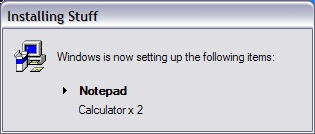
What will happen with the above example is Notepad will run, followed by two calculator processes. Each process must end, before the next process begins.
References:
MSFN
- Easily able to run multiple items
- Easily able to sequence items
- Shows progress with a GUI
HKEY_LOCAL_MACHINE\SOFTWARE\Microsoft\Windows\CurrentVersion\RunOnceEx
Inside of that is a value name you will create called TITLE (REG_SZ). This will be the title displayed on the window showing the progress of our installation.
We then create keys under that. For convenience sake most people number them. This also will help to sequence installs. Inside each key, the default value will be the string that will be displayed when installing items in the key. You create values (REG_SZ), each will be ran in alphabetical/numeric order. The data can be pretty much anything. MSI, EXE, BAT, VBS. I'm not sure what else you'd need, but I think its covered.
Once you've populated this registry structure you can reboot/logoff. The next login that has rights to modify the RunOnceEx registry key will execute the keys in order. Alternatively you can execute the RunOnceEx Process anytime with the following command:
rundll32.exe iernonce.dll,RunOnceExProcess
Please note that the DLL used here is from Internet Explorer. At one point this command did not work when running IE7. I believe this issue may have been addressed. If not, the common workaround I've seen, is the use of the original IE6 dll and simply explicitly calling its path. Regardless, simply logging in will kick off the process.
Here is a sample of the registry for RunOnceEx. Simply copy this into a file and save with a .REG extension.
[HKEY_LOCAL_MACHINE\SOFTWARE\Microsoft\Windows\CurrentVersion\RunOnceEx]
"TITLE"="Installing Stuff"
[HKEY_LOCAL_MACHINE\SOFTWARE\Microsoft\Windows\CurrentVersion\RunOnceEx\1]
@="Notepad"
"1"="C:\\WINDOWS\\notepad.exe"
[HKEY_LOCAL_MACHINE\SOFTWARE\Microsoft\Windows\CurrentVersion\RunOnceEx\2]
@="Calculator x 2"
"1"="C:\\WINDOWS\\System32\\calc.exe"
"2"="C:\\WINDOWS\\System32\\calc.exe"
Here is what the above item will look like

What will happen with the above example is Notepad will run, followed by two calculator processes. Each process must end, before the next process begins.
References:
MSFN
Using Active Setup
On more than one occasion I've had the need to change a user setting. These settings may be replacing a file or a registry key.
Possibly the first idea in solving this problem is to simply go through each user folder in Documents and Settings and work with each folder in sequence. By doing this, you'll likely have some permission problems and also, if working with the registry, have the overhead of loading each registry hive for each user. I've also found that depending on your environment you may be modifying profiles that are stale or completely obsolete.
What we can use instead, is Active Setup. In a nutshell, Active Setup runs when a user logs into the workstation and compares their registry with the local machine. For each entry found missing with the user's registry, it is executed. Normally an entry will be executed once per user and at the time the user logs in. You'll know it is running based on a small window in the top left corner popping up when the user logs in.
To get started You should add the following
[HKEY_LOCAL_MACHINE\SOFTWARE\Microsoft\Active Setup\Installed Components\UniqueID]
"Version"=""
"Stubpath"=""
@=""
The UniqueID is just that. If you look you'll see this is mostly Guids, but it doesn't have to be. Of course you'll want this to be unique.
Version is the version of what you'll be running. Typically you won't have to change this. Where it comes in handy is if you want to update this script and run it again under the same UniqueID. If you update the version then the entry will be ran again.
The Stubpath (Command) is the command that will be executed. I have seen MSIs, EXEs, and VBScripts all run without issue. I've also seen RunDll calls as well.
The default valuename (@) is what will be displayed when the command is being executed.
References:
Active Setup - WikiDesktop
etlengineering.com
Possibly the first idea in solving this problem is to simply go through each user folder in Documents and Settings and work with each folder in sequence. By doing this, you'll likely have some permission problems and also, if working with the registry, have the overhead of loading each registry hive for each user. I've also found that depending on your environment you may be modifying profiles that are stale or completely obsolete.
What we can use instead, is Active Setup. In a nutshell, Active Setup runs when a user logs into the workstation and compares their registry with the local machine. For each entry found missing with the user's registry, it is executed. Normally an entry will be executed once per user and at the time the user logs in. You'll know it is running based on a small window in the top left corner popping up when the user logs in.
To get started You should add the following
[HKEY_LOCAL_MACHINE\SOFTWARE\Microsoft\Active Setup\Installed Components\UniqueID
"Version"="
"Stubpath"="
@="
The UniqueID is just that. If you look you'll see this is mostly Guids, but it doesn't have to be. Of course you'll want this to be unique.
Version is the version of what you'll be running. Typically you won't have to change this. Where it comes in handy is if you want to update this script and run it again under the same UniqueID. If you update the version then the entry will be ran again.
The Stubpath (Command) is the command that will be executed. I have seen MSIs, EXEs, and VBScripts all run without issue. I've also seen RunDll calls as well.
The default valuename (@) is what will be displayed when the command is being executed.
References:
Active Setup - WikiDesktop
etlengineering.com
10 Tools every Desktop Engineer should have.
While working on various projects and troubleshooting more than a few problems, I have found a few tools that are an absolute necessity to perform my typical duties. All but one of these tools are free. I'd like to present them here in no particular order.
1. Process Monitor
Some people may have used FileMon or RegMon. This tool consolidates both tools into one. For those who haven't used either, Process Monitor adds itself as a low level device and allows you to monitor all activity on your disk and registry. I do mean all activity. Running this for a matter of 5 seconds can generate over fifty thousand entries easily. Luckily for us, there are excellent filters that allow us to comb through all this data. Also, Mark Russinovich has several recorded sessions showing how to use Process Monitor.
2. Process Explorer
This is a task manager replacement with a ton of extra features. You can simply check an option to actually replace the task manager. I should point out that this tool and the above tool were created by SysInternals and were eventually acquired by Microsoft. At the SysInternals site you can find more tools that are just as useful as these two tools.
3. Wireshark
Just as Process Monitor showed you events on your system. Wireshark shows you events going across your network connection. This application was previously called Ethereal. You can break down every packet coming from your system and see exactly what is being sent across the wire.
4. Beyond Compare
This is the only application that isn't free. You may be able to find other applications to do this work, but this application is great. Beyond Compare allows you to compare files and folders. You can look line-by-line and see what is different in an individual file, or look at a folder structure looking for files that are different.
5. Irfanview
If your work is anything like mine, you likely need to write a decent amount of documenation. A lot of my documentation contains screenshots. This application will help by taking a jpg screen capture anytime you hit a hotkey you define (Ctrl-F11 by default). it saves the file in a directory. You can save the whole screen or just the foreground window.
6. Notepad++
I used notepad a lot. Until I came across this application. It has a tabbed interface, allowing for multiple documents. It will detect when a file is updated and prompt you to reload. It also includes syntax highlighting for a ton of languages. It provides Regular Expression support, but probably not as much as you may find in vim. Nevertheless, it is a good replacement for Notepad.
7. VMWare Player
Testing and retesting, is a daily routine for me. Because of that, it is important to have something to easily test with. VMWare solves that problem. You may say that this only plays existing images. That problem is easily solved with EasyVMX, which allows you to create VMWare disks for use in the VMWare player. If this is more work, then you can buy the actual VMWare Workstation, but for me this works well.
8. Orca
This is the free tool provided by Microsoft to view MSI files. It is quick and dirty way to see MSIs and their tables. The biggest drawback is that you have to get it off the Windows SDK in order to get the MSI to install.
9. WScript Shell Documentation
I make it a point with scripting and writing code in general to not memorize code. I do this for a few reasons. First, I have enough junk to remember that I shouldn't bother stuff that is easily found in a book or a help file. Secondly, I should always be aware that my code can be better. If I simply remember a way to do task X, then I'll never bother to improve that task. For those reasons, I always have the documentation for VBScript readily available.
10. TortoiseSVN
Anyone who scripts should have some way at looking at where they came from with any particular script. Too many times I've seen a script in a directory that has about 10 different types of backups for that one script. You'll see script.vbs. Then script2.vbs, script.old, script.bak, or scriptREALLYOLD.vbs. Why bother when you can use free source control. Sure you have to learn how to use Source control, but shouldn't you do that anyway? Besides, learning the basics, can be done off of YouTube if you wanted. Personally I like Jeff Atwood's blog entry on setting up source control.
So, that does it. This is not an exhaustive list and perhaps one day I'll compose an addendum to it. But, I really think that each of these tools are essential to a normal Desktop Engineer.
1. Process Monitor
Some people may have used FileMon or RegMon. This tool consolidates both tools into one. For those who haven't used either, Process Monitor adds itself as a low level device and allows you to monitor all activity on your disk and registry. I do mean all activity. Running this for a matter of 5 seconds can generate over fifty thousand entries easily. Luckily for us, there are excellent filters that allow us to comb through all this data. Also, Mark Russinovich has several recorded sessions showing how to use Process Monitor.
2. Process Explorer
This is a task manager replacement with a ton of extra features. You can simply check an option to actually replace the task manager. I should point out that this tool and the above tool were created by SysInternals and were eventually acquired by Microsoft. At the SysInternals site you can find more tools that are just as useful as these two tools.
3. Wireshark
Just as Process Monitor showed you events on your system. Wireshark shows you events going across your network connection. This application was previously called Ethereal. You can break down every packet coming from your system and see exactly what is being sent across the wire.
4. Beyond Compare
This is the only application that isn't free. You may be able to find other applications to do this work, but this application is great. Beyond Compare allows you to compare files and folders. You can look line-by-line and see what is different in an individual file, or look at a folder structure looking for files that are different.
5. Irfanview
If your work is anything like mine, you likely need to write a decent amount of documenation. A lot of my documentation contains screenshots. This application will help by taking a jpg screen capture anytime you hit a hotkey you define (Ctrl-F11 by default). it saves the file in a directory. You can save the whole screen or just the foreground window.
6. Notepad++
I used notepad a lot. Until I came across this application. It has a tabbed interface, allowing for multiple documents. It will detect when a file is updated and prompt you to reload. It also includes syntax highlighting for a ton of languages. It provides Regular Expression support, but probably not as much as you may find in vim. Nevertheless, it is a good replacement for Notepad.
7. VMWare Player
Testing and retesting, is a daily routine for me. Because of that, it is important to have something to easily test with. VMWare solves that problem. You may say that this only plays existing images. That problem is easily solved with EasyVMX, which allows you to create VMWare disks for use in the VMWare player. If this is more work, then you can buy the actual VMWare Workstation, but for me this works well.
8. Orca
This is the free tool provided by Microsoft to view MSI files. It is quick and dirty way to see MSIs and their tables. The biggest drawback is that you have to get it off the Windows SDK in order to get the MSI to install.
9. WScript Shell Documentation
I make it a point with scripting and writing code in general to not memorize code. I do this for a few reasons. First, I have enough junk to remember that I shouldn't bother stuff that is easily found in a book or a help file. Secondly, I should always be aware that my code can be better. If I simply remember a way to do task X, then I'll never bother to improve that task. For those reasons, I always have the documentation for VBScript readily available.
10. TortoiseSVN
Anyone who scripts should have some way at looking at where they came from with any particular script. Too many times I've seen a script in a directory that has about 10 different types of backups for that one script. You'll see script.vbs. Then script2.vbs, script.old, script.bak, or scriptREALLYOLD.vbs. Why bother when you can use free source control. Sure you have to learn how to use Source control, but shouldn't you do that anyway? Besides, learning the basics, can be done off of YouTube if you wanted. Personally I like Jeff Atwood's blog entry on setting up source control.
So, that does it. This is not an exhaustive list and perhaps one day I'll compose an addendum to it. But, I really think that each of these tools are essential to a normal Desktop Engineer.
When an exploit is not an exploit
Lately, I've stumbled (literally) onto sites claiming Vista's security flaws. It seems like the post originated from the McAfee Avert Labs Blog. The claim is that an executable, sethc.exe, can be replaced and allow for system access. The executable is associated with the Sticky Keys feature and can be activated by pressing a modifier key five times in a row. Once done the malicious sethc.exe file is launched.
This file isn't new, it was available in 2000 and XP and it isn't an exploit.
One of my favorite bloggers is Raymond Chen. He has taken 'exploits' similar to these to task for a while now. (1, 2, 3, and 4 for example) I think that the 10 Immutable Laws of Security, written by Microsoft Security Response Center has it put best:
If you are able to modify system files, then you have all the access that you need. The exploit could be compared to a scenario such as this:
You have a locked room and I want inside. So, I take your key and bring it to a friend who goes into his secret lair (or Lowes) and makes a copy of it. Then I skydive back to you and plant the key back. I then unlock your door.
Great, so why didn't I just use the key? Sometimes when these 'exploits' are described, the extra steps mearly obfuscate the true nature of what is going on.
I take your key.
This is also reminds me of those number tricks relatives spam you with. Take a number, do a bunch of confusing things to it, and end up with a number or a symbol or whatever.
In the end, giving admin access to someone (whether you chose to or not) grants them administrative actions.
This file isn't new, it was available in 2000 and XP and it isn't an exploit.
One of my favorite bloggers is Raymond Chen. He has taken 'exploits' similar to these to task for a while now. (1, 2, 3, and 4 for example) I think that the 10 Immutable Laws of Security, written by Microsoft Security Response Center has it put best:
Law #1: If a bad guy can persuade you to run his program on your computer, it's not your computer anymore
If you are able to modify system files, then you have all the access that you need. The exploit could be compared to a scenario such as this:
You have a locked room and I want inside. So, I take your key and bring it to a friend who goes into his secret lair (or Lowes) and makes a copy of it. Then I skydive back to you and plant the key back. I then unlock your door.
Great, so why didn't I just use the key? Sometimes when these 'exploits' are described, the extra steps mearly obfuscate the true nature of what is going on.
I take your key.
This is also reminds me of those number tricks relatives spam you with. Take a number, do a bunch of confusing things to it, and end up with a number or a symbol or whatever.
In the end, giving admin access to someone (whether you chose to or not) grants them administrative actions.
Working With Devices: Enabling/Disabling a device
All the code in previous blog posts leading up to this were really for one purpose. I wanted the ability to enable and disable a device.
We will use two functions to change the state of a device. SetupDiSetClassInstallParams and SetupDiCallClassInstaller
Private Declare Auto Function SetupDiSetClassInstallParams Lib "setupapi.dll" (ByVal DeviceInfoSet As IntPtr, ByVal DeviceInfoData As IntPtr, ByVal InstallParams As IntPtr, ByVal InstallParamsSize As Integer) As Boolean
Private Declare Auto Function SetupDiCallClassInstaller Lib "setupapi.dll" (ByVal InstallFunction As Integer, ByVal DeviceInfoSet As IntPtr, ByVal DeviceInfoData As IntPtr) As Boolean
Private Const DIF_PROPERTYCHANGE As Integer = &H12
Private Const DICS_ENABLE As Integer = 1
Private Const DICS_DISABLE As Integer = 2
Private Const DICS_FLAG_GLOBAL As Integer = 1
Private Const DICS_FLAG_CONFIGSPECIFIC As Integer = 2
'Struct for Enabling/Disabling a device
Private Structure SP_PROPCHANGE_PARAMS
Public ClassInstallHeader As SP_CLASSINSTALL_HEADER
Public StateChange As Integer
Public Scope As Integer
Public HwProfile As Integer
End Structure
'Two actions on a device. Just to make things simple
Public Enum Change_Action
Disable
Enable
End Enum
'Changes the state of a given device.
Public Function ChangeState(ByVal DevInfoSet As IntPtr, ByVal Device As Device, ByVal newState As Change_Action) As Boolean
'We make sure that the device isn't already set to the newState
Dim DeviceEnabled As Boolean = IsDeviceEnabled(Device.DevInfo.DevInst)
If DeviceEnabled And newState = Change_Action.Enable Then Return True
If Not DeviceEnabled And newState = Change_Action.Disable Then Return True
'We first try to set the device Globally. If it fails then we try setting it just for the current Profile
'Device Manager seems to disable devices by hardware profile. That would make since. In our case we try disable the device Globally
'first.
If ChangeDevState(DevInfoSet, Device, newState, DICS_FLAG_GLOBAL) Then
Return True
Else
Return ChangeDevState(DevInfoSet, Device, newState, DICS_FLAG_CONFIGSPECIFIC)
End If
End Function
'Changes a device state
Private Function ChangeDevState(ByVal DevInfoSet As IntPtr, ByVal Device As Device, ByVal newState As Change_Action, ByVal Scope As Integer) As Boolean
'Sets up the Change Structure
Dim Prop_Change As SP_PROPCHANGE_PARAMS = New SP_PROPCHANGE_PARAMS
Prop_Change.ClassInstallHeader.cbSize = Marshal.SizeOf(GetType(SP_CLASSINSTALL_HEADER))
Prop_Change.ClassInstallHeader.InstallFunction = DIF_PROPERTYCHANGE
Prop_Change.StateChange = IIf(newState = Change_Action.Enable, DICS_ENABLE, DICS_DISABLE)
Prop_Change.Scope = Scope
Prop_Change.HwProfile = 0
'We create two pointers. One for the Change Structure and a second for the Device. We set the Structures to their pointer
Dim intProp_ChangeSize As Integer = Marshal.SizeOf(Prop_Change)
Dim intProp_Change As IntPtr = Marshal.AllocHGlobal(Marshal.SizeOf(Prop_Change.ClassInstallHeader))
Marshal.StructureToPtr(Prop_Change, intProp_Change, True)
Dim intDevInfoSize As Integer = Marshal.SizeOf(Device.DevInfo)
Dim intDevInfo As IntPtr = Marshal.AllocHGlobal(intDevInfoSize)
Marshal.StructureToPtr(Device.DevInfo, intDevInfo, True)
'Sets the Property Change Structure for the Device. True is success
Dim Result As Boolean = SetupDiSetClassInstallParams(DevInfoSet, intDevInfo, intProp_Change, intProp_ChangeSize)
If Result Then
'Attempts to execute the Call. True is success
Result = SetupDiCallClassInstaller(DIF_PROPERTYCHANGE, DevInfoSet, intDevInfo)
If Result Then
'Depending on the scope used to enable/disable the device it may not work. So we'll check the device state.
If newState = Change_Action.Enable Then
Return IsDeviceEnabled(Device.DevInfo.DevInst)
Else
Return Not IsDeviceEnabled(Device.DevInfo.DevInst)
End If
Else
Throw New Win32Exception(Marshal.GetLastWin32Error)
Return False
End If
Else
Throw New Win32Exception(Marshal.GetLastWin32Error)
Return False
End If
End Function
To use this, we call the ChangeState function. We call this with the Device Info Set and Device variables along with what we want to do. We can Enable or Disable the device. First thing we do, is check whether or not the device is already set correctly. Next thing we do is attempt to enable or disable the device. The first way we try to do this is Globally. If, that fails then we try on the specific profile.
I did this after working with enabling and disabling devices and noticed that the device manager disables a device for the profile. In my specific case I needed devices disabled globally. If I just enabled or disabled globally, I'd run into problems when a device is disabled for the profile and not globally. Your use may vary, so feel free to choose one or the other, but if you ever come across a device in device manager that shows a disabled icon associated with disable in the context menu (or both enabled) then that is your problem.
The ChangeDevState function actually does the changing of the state. The code with comments will explain it as best I can.
We will use two functions to change the state of a device. SetupDiSetClassInstallParams and SetupDiCallClassInstaller
Private Declare Auto Function SetupDiSetClassInstallParams Lib "setupapi.dll" (ByVal DeviceInfoSet As IntPtr, ByVal DeviceInfoData As IntPtr, ByVal InstallParams As IntPtr, ByVal InstallParamsSize As Integer) As Boolean
Private Declare Auto Function SetupDiCallClassInstaller Lib "setupapi.dll" (ByVal InstallFunction As Integer, ByVal DeviceInfoSet As IntPtr, ByVal DeviceInfoData As IntPtr) As Boolean
Private Const DIF_PROPERTYCHANGE As Integer = &H12
Private Const DICS_ENABLE As Integer = 1
Private Const DICS_DISABLE As Integer = 2
Private Const DICS_FLAG_GLOBAL As Integer = 1
Private Const DICS_FLAG_CONFIGSPECIFIC As Integer = 2
'Struct for Enabling/Disabling a device
Public ClassInstallHeader As SP_CLASSINSTALL_HEADER
Public StateChange As Integer
Public Scope As Integer
Public HwProfile As Integer
End Structure
'Two actions on a device. Just to make things simple
Public Enum Change_Action
Disable
Enable
End Enum
'Changes the state of a given device.
Public Function ChangeState(ByVal DevInfoSet As IntPtr, ByVal Device As Device, ByVal newState As Change_Action) As Boolean
'We make sure that the device isn't already set to the newState
Dim DeviceEnabled As Boolean = IsDeviceEnabled(Device.DevInfo.DevInst)
If DeviceEnabled And newState = Change_Action.Enable Then Return True
If Not DeviceEnabled And newState = Change_Action.Disable Then Return True
'We first try to set the device Globally. If it fails then we try setting it just for the current Profile
'Device Manager seems to disable devices by hardware profile. That would make since. In our case we try disable the device Globally
'first.
If ChangeDevState(DevInfoSet, Device, newState, DICS_FLAG_GLOBAL) Then
Return True
Else
Return ChangeDevState(DevInfoSet, Device, newState, DICS_FLAG_CONFIGSPECIFIC)
End If
End Function
'Changes a device state
Private Function ChangeDevState(ByVal DevInfoSet As IntPtr, ByVal Device As Device, ByVal newState As Change_Action, ByVal Scope As Integer) As Boolean
'Sets up the Change Structure
Dim Prop_Change As SP_PROPCHANGE_PARAMS = New SP_PROPCHANGE_PARAMS
Prop_Change.ClassInstallHeader.cbSize = Marshal.SizeOf(GetType(SP_CLASSINSTALL_HEADER))
Prop_Change.ClassInstallHeader.InstallFunction = DIF_PROPERTYCHANGE
Prop_Change.StateChange = IIf(newState = Change_Action.Enable, DICS_ENABLE, DICS_DISABLE)
Prop_Change.Scope = Scope
Prop_Change.HwProfile = 0
'We create two pointers. One for the Change Structure and a second for the Device. We set the Structures to their pointer
Dim intProp_ChangeSize As Integer = Marshal.SizeOf(Prop_Change)
Dim intProp_Change As IntPtr = Marshal.AllocHGlobal(Marshal.SizeOf(Prop_Change.ClassInstallHeader))
Marshal.StructureToPtr(Prop_Change, intProp_Change, True)
Dim intDevInfoSize As Integer = Marshal.SizeOf(Device.DevInfo)
Dim intDevInfo As IntPtr = Marshal.AllocHGlobal(intDevInfoSize)
Marshal.StructureToPtr(Device.DevInfo, intDevInfo, True)
'Sets the Property Change Structure for the Device. True is success
Dim Result As Boolean = SetupDiSetClassInstallParams(DevInfoSet, intDevInfo, intProp_Change, intProp_ChangeSize)
If Result Then
'Attempts to execute the Call. True is success
Result = SetupDiCallClassInstaller(DIF_PROPERTYCHANGE, DevInfoSet, intDevInfo)
If Result Then
'Depending on the scope used to enable/disable the device it may not work. So we'll check the device state.
If newState = Change_Action.Enable Then
Return IsDeviceEnabled(Device.DevInfo.DevInst)
Else
Return Not IsDeviceEnabled(Device.DevInfo.DevInst)
End If
Else
Throw New Win32Exception(Marshal.GetLastWin32Error)
Return False
End If
Else
Throw New Win32Exception(Marshal.GetLastWin32Error)
Return False
End If
End Function
To use this, we call the ChangeState function. We call this with the Device Info Set and Device variables along with what we want to do. We can Enable or Disable the device. First thing we do, is check whether or not the device is already set correctly. Next thing we do is attempt to enable or disable the device. The first way we try to do this is Globally. If, that fails then we try on the specific profile.
I did this after working with enabling and disabling devices and noticed that the device manager disables a device for the profile. In my specific case I needed devices disabled globally. If I just enabled or disabled globally, I'd run into problems when a device is disabled for the profile and not globally. Your use may vary, so feel free to choose one or the other, but if you ever come across a device in device manager that shows a disabled icon associated with disable in the context menu (or both enabled) then that is your problem.
The ChangeDevState function actually does the changing of the state. The code with comments will explain it as best I can.
Troubleshooting an MSI
As part of a project, we need to take a company's set of MSI's and install them all together. Our first revision worked well. Recently I received an update for one of the applications. When I started testing it, the install would get nearly complete and then just sit. It would say '0 Seconds Remaining'. That 0 Seconds occurred for over an hour with no change to the progress or status.
I had run the install using the log option, so I could see that no new log entries were being logged.
I used Process Explorer from Sysinternals. I ordered the processes by CPU utilization and noticed that wmiapsrv.exe was consuming resources. My thought was that the MSI was making a WMI Query. I decided to kill the wmi process to see if the log would update with exactly what was going on.
Lucky for me it did. It gave me a 1720 error. Reading the full error I saw that the error means a custom action failed. I was even provided with a line of where the error occurred. I looked at the custom action using orca and found the binary that it was using and what it was calling in that binary.
Orca can extract the binary, which is what I did and looked at the line referenced in the error. I saw the below VBScript code. (I exercised some Self-Censorship, but the code is still relevant)
strComputer = "."
Set objWMIService = GetObject("winmgmts:\\" & strComputer & "\root\cimv2")
Set colItems = objWMIService.ExecQuery("Select * from Win32_Account")
For Each objItem in colItems
Select Case objItem.SID
...
End Select
Next
The error occurred at the last line. ('Next') So, now I was getting some more clarity as to the problem. It failed at the Next command, since I killed the process that was at least partly responsible in serving up that collection.
I decided to run that query once to confirm what I was thinking. I ran wbemtest and connected to root/cimv2 and then ran the query 'Select * from Win32_Account'. First, I received all the accounts on my local computer. Then, it started retrieving all the accounts on the domain. We have many domain accounts. Easily over 50 thousand and it wouldn't be a stretch to say 100 thousand.
What they actually wanted was simply some account names based on a SID. So, 'S-1-5-32-544' would be the Administrator account. But if you renamed the account, it would be called something else. Here is a different way to get that info, with credit due to The Scripting Guys.
strComputer = "."
Set objWMIService = GetObject("winmgmts:\\" & strComputer & "\root\cimv2")
Set objAccount = objWMIService.Get("Win32_SID.SID='S-1-5-32-544'")
Administrators_Name = objAccount.AccountName
This will accomplish the same thing, but won't go through the entire domain like the previous code.
So, I explained this issue and should be receiving updated code shortly. But, what could I do if I didn't receive the updated MSI?
What we could do, is create a transform. In the transform we replace the Binary that the custom action is calling with our version of the code. When we run the installer we now have to call the transform with the TRANSFORMS= argument when launching the MSI.
Problem solved and everyone is happy.
I had run the install using the log option, so I could see that no new log entries were being logged.
I used Process Explorer from Sysinternals. I ordered the processes by CPU utilization and noticed that wmiapsrv.exe was consuming resources. My thought was that the MSI was making a WMI Query. I decided to kill the wmi process to see if the log would update with exactly what was going on.
Lucky for me it did. It gave me a 1720 error. Reading the full error I saw that the error means a custom action failed. I was even provided with a line of where the error occurred. I looked at the custom action using orca and found the binary that it was using and what it was calling in that binary.
Orca can extract the binary, which is what I did and looked at the line referenced in the error. I saw the below VBScript code. (I exercised some Self-Censorship, but the code is still relevant)
strComputer = "."
Set objWMIService = GetObject("winmgmts:\\" & strComputer & "\root\cimv2")
Set colItems = objWMIService.ExecQuery("Select * from Win32_Account")
For Each objItem in colItems
Select Case objItem.SID
...
End Select
Next
The error occurred at the last line. ('Next') So, now I was getting some more clarity as to the problem. It failed at the Next command, since I killed the process that was at least partly responsible in serving up that collection.
I decided to run that query once to confirm what I was thinking. I ran wbemtest and connected to root/cimv2 and then ran the query 'Select * from Win32_Account'. First, I received all the accounts on my local computer. Then, it started retrieving all the accounts on the domain. We have many domain accounts. Easily over 50 thousand and it wouldn't be a stretch to say 100 thousand.
What they actually wanted was simply some account names based on a SID. So, 'S-1-5-32-544' would be the Administrator account. But if you renamed the account, it would be called something else. Here is a different way to get that info, with credit due to The Scripting Guys.
strComputer = "."
Set objWMIService = GetObject("winmgmts:\\" & strComputer & "\root\cimv2")
Set objAccount = objWMIService.Get("Win32_SID.SID='S-1-5-32-544'")
Administrators_Name = objAccount.AccountName
This will accomplish the same thing, but won't go through the entire domain like the previous code.
So, I explained this issue and should be receiving updated code shortly. But, what could I do if I didn't receive the updated MSI?
What we could do, is create a transform. In the transform we replace the Binary that the custom action is calling with our version of the code. When we run the installer we now have to call the transform with the TRANSFORMS= argument when launching the MSI.
Problem solved and everyone is happy.
Working With Devices: Getting Status on a Device
This time we will look at checking if a device is enabled, disabled, or has a problem. From last time we received a device structure that contained a SP_DEVINFO_DATA structure. Within that structure we find a DevInst integer. With that and the use of the CM_Get_DevNode_Status function we can get status information on a device.
Private Declare Auto Function CM_Get_DevNode_Status Lib "cfgmgr32.dll" (ByRef pulStatus As IntPtr, ByRef pulProblemNumber As IntPtr, ByVal dnDevInst As Integer, ByVal ulFlags As Long) As Integer
This function will return the status and any problem with the device given. The last variable must be set to 0. The Status and Problem flags can have numerous meanings, so we have two enumerations to describe all the possible values. I've only encountered a handful of status and problem codes through normal use.
'Status Flags. Devices can have one or more of these. ANDing is used to determine which apply
Public Enum DN_Flags
DN_ROOT_ENUMERATED = &H1 ' Was enumerated by ROOT
DN_DRIVER_LOADED = &H2 ' Has Register_Device_Driver
DN_ENUM_LOADED = &H4 ' Has Register_Enumerator
DN_STARTED = &H8 ' Is currently configured
DN_MANUAL = &H10 ' Manually installed
DN_NEED_TO_ENUM = &H20 ' May need reenumeration
DN_NOT_FIRST_TIME = &H40 ' Has received a config
DN_HARDWARE_ENUM = &H80 ' Enum generates hardware ID
DN_LIAR = &H100 ' Lied about can reconfig once
DN_HAS_MARK = &H200 ' Not CM_Create_DevInst lately
DN_HAS_PROBLEM = &H400 ' Need device installer
DN_FILTERED = &H800 ' Is filtered
DN_MOVED = &H1000 ' Has been moved
DN_DISABLEABLE = &H2000 ' Can be disabled
DN_REMOVABLE = &H4000 ' Can be removed
DN_PRIVATE_PROBLEM = &H8000 ' Has a private problem
DN_MF_PARENT = &H10000 ' Multi function parent
DN_MF_CHILD = &H20000 ' Multi function child
DN_WILL_BE_REMOVED = &H40000 ' DevInst is being removed
DN_NOT_FIRST_TIMEE = &H80000 ' Has received a config enumerate
DN_STOP_FREE_RES = &H100000 ' When child is stopped, free resources
DN_REBAL_CANDIDATE = &H200000 ' Don't skip during rebalance
DN_BAD_PARTIAL = &H400000 ' This devnode's log_confs do not have same resources
DN_NT_ENUMERATOR = &H800000 ' This devnode's is an NT enumerator
DN_NT_DRIVER = &H1000000 ' This devnode's is an NT driver
DN_NEEDS_LOCKING = &H2000000 ' Devnode need lock resume processing
DN_ARM_WAKEUP = &H4000000 ' Devnode can be the wakeup device
DN_APM_ENUMERATOR = &H8000000 ' APM aware enumerator
DN_APM_DRIVER = &H10000000 ' APM aware driver
DN_SILENT_INSTALL = &H20000000 ' Silent install
DN_NO_SHOW_IN_DM = &H40000000 ' No show in device manager
DN_BOOT_LOG_PROB = &H80000000 ' Had a problem during preassignment of boot log conf
End Enum
'Problem associated with device. A device has 0 or 1 problem associated with it.
Public Enum CM_PROB
CM_PROB_NOT_CONFIGURED = &H1 ' no config for device
CM_PROB_DEVLOADER_FAILED = &H2 ' service load failed
CM_PROB_OUT_OF_MEMORY = &H3 ' out of memory
CM_PROB_ENTRY_IS_WRONG_TYPE = &H4 '
CM_PROB_LACKED_ARBITRATOR = &H5 '
CM_PROB_BOOT_CONFIG_CONFLICT = &H6 ' boot config conflict
CM_PROB_FAILED_FILTER = &H7 '
CM_PROB_DEVLOADER_NOT_FOUND = &H8 ' Devloader not found
CM_PROB_INVALID_DATA = &H9 ' Invalid ID
CM_PROB_FAILED_START = &HA '
CM_PROB_LIAR = &HB '
CM_PROB_NORMAL_CONFLICT = &HC ' config conflict
CM_PROB_NOT_VERIFIED = &HD '
CM_PROB_NEED_RESTART = &HE ' requires restart
CM_PROB_REENUMERATION = &HF '
CM_PROB_PARTIAL_LOG_CONF = &H10 '
CM_PROB_UNKNOWN_RESOURCE = &H11 ' unknown res type
CM_PROB_REINSTALL = &H12 '
CM_PROB_REGISTRY = &H13 '
CM_PROB_VXDLDR = &H14 ' WINDOWS 95 ONLY
CM_PROB_WILL_BE_REMOVED = &H15 ' devinst will remove
CM_PROB_DISABLED = &H16 ' devinst is disabled
CM_PROB_DEVLOADER_NOT_READY = &H17 ' Devloader not ready
CM_PROB_DEVICE_NOT_THERE = &H18 ' device doesn't exist
CM_PROB_MOVED = &H19 '
CM_PROB_TOO_EARLY = &H1A '
CM_PROB_NO_VALID_LOG_CONF = &H1B ' no valid log config
CM_PROB_FAILED_INSTALL = &H1C ' install failed
CM_PROB_HARDWARE_DISABLED = &H1D ' device disabled
CM_PROB_CANT_SHARE_IRQ = &H1E ' can't share IRQ
CM_PROB_FAILED_ADD = &H1F ' driver failed add
CM_PROB_DISABLED_SERVICE = &H20 ' service's Start = 4
CM_PROB_TRANSLATION_FAILED = &H21 ' resource translation failed
CM_PROB_NO_SOFTCONFIG = &H22 ' no soft config
CM_PROB_BIOS_TABLE = &H23 ' device missing in BIOS table
CM_PROB_IRQ_TRANSLATION_FAILED = &H24 ' IRQ translator failed
CM_PROB_FAILED_DRIVER_ENTRY = &H25 ' DriverEntry() failed.
CM_PROB_DRIVER_FAILED_PRIOR_UNLOAD = &H26 ' Driver should have unloaded.
CM_PROB_DRIVER_FAILED_LOAD = &H27 ' Driver load unsuccessful.
CM_PROB_DRIVER_SERVICE_KEY_INVALID = &H28 ' Error accessing driver's service key
CM_PROB_LEGACY_SERVICE_NO_DEVICES = &H29 ' Loaded legacy service created no devices
CM_PROB_DUPLICATE_DEVICE = &H2A ' Two devices were discovered with the same name
CM_PROB_FAILED_POST_START = &H2B ' The drivers set the device state to failed
CM_PROB_HALTED = &H2C ' This device was failed post start via usermode
CM_PROB_PHANTOM = &H2D ' The devinst currently exists only in the registry
CM_PROB_SYSTEM_SHUTDOWN = &H2E ' The system is shutting down
CM_PROB_HELD_FOR_EJECT = &H2F ' The device is offline awaiting removal
CM_PROB_DRIVER_BLOCKED = &H30 ' One or more drivers is blocked from loading
CM_PROB_REGISTRY_TOO_LARGE = &H31 ' System hive has grown too large
CM_PROB_SETPROPERTIES_FAILED = &H32 ' Failed to apply one or more registry properties
NUM_CM_PROB = &H33 '
End Enum
'Returns true if the device is enabled
Public Function IsDeviceEnabled(ByVal DevInst As Integer) As Boolean
Dim Result As Integer
Dim Problem, Status As IntPtr
Result = CM_Get_DevNode_Status(Status, Problem, DevInst, 0)
If Result = 13 Then Return Nothing
If Result <> 0 Then Throw New ApplicationException("Return Code From CM_Get_DevNode_Status was not 0")
Return Not Problem.ToInt32 = CM_PROB.CM_PROB_DISABLED
End Function
'Returns true if the Status Flag to hide the device is set.
Public Function IsDeviceHidden(ByVal DevInst As Integer) As Boolean
Dim Result As Integer
Dim Problem, Status As IntPtr
Result = CM_Get_DevNode_Status(Status, Problem, DevInst, 0)
If Result <> 0 Then Throw New ApplicationException("Return Code From CM_Get_DevNode_Status was not 0")
Return (Status.ToInt32 And DN_Flags.DN_NO_SHOW_IN_DM) = DN_Flags.DN_NO_SHOW_IN_DM
End Function
'Gets all the Device Status Flags for a device
Public Function GetDeviceStatus(ByVal DevInst As Integer) As String()
Dim Result As Integer
Dim Problem, Status As IntPtr
Result = CM_Get_DevNode_Status(Status, Problem, DevInst, 0)
If Result = 13 Then Return Nothing
If Result <> 0 Then Throw New ApplicationException("Return Code From CM_Get_DevNode_Status was not 0")
Return GetBitFlags(Status, GetType(DN_Flags))
End Function
'Gets a Device Problem
Public Function GetDeviceProblem(ByVal DevInst As Integer) As String
Dim Result As Integer
Dim Problem, Status As IntPtr
Result = CM_Get_DevNode_Status(Status, Problem, DevInst, 0)
If Result = 13 Then Return Nothing
If Result <> 0 Then Throw New ApplicationException("Return Code From CM_Get_DevNode_Status was not 0")
If Problem.ToInt32 = 0 Then
Return "No Problem"
Else
Return CType(Problem.ToInt32, CM_PROB).ToString
End If
End Function
'Returns an array of strings representing the Status Flags set for a device.
Private Function GetBitFlags(ByVal Bits As IntPtr, ByVal EnumType As Type) As String()
Dim arrData As New ArrayList
For Each TypeName As String In [Enum].GetNames(EnumType)
Dim Number As Int32 = [Enum].Parse(EnumType, TypeName)
If (Bits.ToInt32 And Number) = Number Then
arrData.Add(TypeName)
End If
Next
Dim StrData(arrData.Count) As String
arrData.CopyTo(StrData)
Return StrData
End Function
Here is how you could call this. after you retrieve a device in variable objDevice.
If IsDeviceEnabled(objDevice.DevInfo.DevInst) Then
'Device Enabled
...
Else
'Device Disabled
...
End If
I think that the code should be fairly straightforward to follow.
Private Declare Auto Function CM_Get_DevNode_Status Lib "cfgmgr32.dll" (ByRef pulStatus As IntPtr, ByRef pulProblemNumber As IntPtr, ByVal dnDevInst As Integer, ByVal ulFlags As Long) As Integer
This function will return the status and any problem with the device given. The last variable must be set to 0. The Status and Problem flags can have numerous meanings, so we have two enumerations to describe all the possible values. I've only encountered a handful of status and problem codes through normal use.
'Status Flags. Devices can have one or more of these. ANDing is used to determine which apply
Public Enum DN_Flags
DN_ROOT_ENUMERATED = &H1 ' Was enumerated by ROOT
DN_DRIVER_LOADED = &H2 ' Has Register_Device_Driver
DN_ENUM_LOADED = &H4 ' Has Register_Enumerator
DN_STARTED = &H8 ' Is currently configured
DN_MANUAL = &H10 ' Manually installed
DN_NEED_TO_ENUM = &H20 ' May need reenumeration
DN_NOT_FIRST_TIME = &H40 ' Has received a config
DN_HARDWARE_ENUM = &H80 ' Enum generates hardware ID
DN_LIAR = &H100 ' Lied about can reconfig once
DN_HAS_MARK = &H200 ' Not CM_Create_DevInst lately
DN_HAS_PROBLEM = &H400 ' Need device installer
DN_FILTERED = &H800 ' Is filtered
DN_MOVED = &H1000 ' Has been moved
DN_DISABLEABLE = &H2000 ' Can be disabled
DN_REMOVABLE = &H4000 ' Can be removed
DN_PRIVATE_PROBLEM = &H8000 ' Has a private problem
DN_MF_PARENT = &H10000 ' Multi function parent
DN_MF_CHILD = &H20000 ' Multi function child
DN_WILL_BE_REMOVED = &H40000 ' DevInst is being removed
DN_NOT_FIRST_TIMEE = &H80000 ' Has received a config enumerate
DN_STOP_FREE_RES = &H100000 ' When child is stopped, free resources
DN_REBAL_CANDIDATE = &H200000 ' Don't skip during rebalance
DN_BAD_PARTIAL = &H400000 ' This devnode's log_confs do not have same resources
DN_NT_ENUMERATOR = &H800000 ' This devnode's is an NT enumerator
DN_NT_DRIVER = &H1000000 ' This devnode's is an NT driver
DN_NEEDS_LOCKING = &H2000000 ' Devnode need lock resume processing
DN_ARM_WAKEUP = &H4000000 ' Devnode can be the wakeup device
DN_APM_ENUMERATOR = &H8000000 ' APM aware enumerator
DN_APM_DRIVER = &H10000000 ' APM aware driver
DN_SILENT_INSTALL = &H20000000 ' Silent install
DN_NO_SHOW_IN_DM = &H40000000 ' No show in device manager
DN_BOOT_LOG_PROB = &H80000000 ' Had a problem during preassignment of boot log conf
End Enum
'Problem associated with device. A device has 0 or 1 problem associated with it.
Public Enum CM_PROB
CM_PROB_NOT_CONFIGURED = &H1 ' no config for device
CM_PROB_DEVLOADER_FAILED = &H2 ' service load failed
CM_PROB_OUT_OF_MEMORY = &H3 ' out of memory
CM_PROB_ENTRY_IS_WRONG_TYPE = &H4 '
CM_PROB_LACKED_ARBITRATOR = &H5 '
CM_PROB_BOOT_CONFIG_CONFLICT = &H6 ' boot config conflict
CM_PROB_FAILED_FILTER = &H7 '
CM_PROB_DEVLOADER_NOT_FOUND = &H8 ' Devloader not found
CM_PROB_INVALID_DATA = &H9 ' Invalid ID
CM_PROB_FAILED_START = &HA '
CM_PROB_LIAR = &HB '
CM_PROB_NORMAL_CONFLICT = &HC ' config conflict
CM_PROB_NOT_VERIFIED = &HD '
CM_PROB_NEED_RESTART = &HE ' requires restart
CM_PROB_REENUMERATION = &HF '
CM_PROB_PARTIAL_LOG_CONF = &H10 '
CM_PROB_UNKNOWN_RESOURCE = &H11 ' unknown res type
CM_PROB_REINSTALL = &H12 '
CM_PROB_REGISTRY = &H13 '
CM_PROB_VXDLDR = &H14 ' WINDOWS 95 ONLY
CM_PROB_WILL_BE_REMOVED = &H15 ' devinst will remove
CM_PROB_DISABLED = &H16 ' devinst is disabled
CM_PROB_DEVLOADER_NOT_READY = &H17 ' Devloader not ready
CM_PROB_DEVICE_NOT_THERE = &H18 ' device doesn't exist
CM_PROB_MOVED = &H19 '
CM_PROB_TOO_EARLY = &H1A '
CM_PROB_NO_VALID_LOG_CONF = &H1B ' no valid log config
CM_PROB_FAILED_INSTALL = &H1C ' install failed
CM_PROB_HARDWARE_DISABLED = &H1D ' device disabled
CM_PROB_CANT_SHARE_IRQ = &H1E ' can't share IRQ
CM_PROB_FAILED_ADD = &H1F ' driver failed add
CM_PROB_DISABLED_SERVICE = &H20 ' service's Start = 4
CM_PROB_TRANSLATION_FAILED = &H21 ' resource translation failed
CM_PROB_NO_SOFTCONFIG = &H22 ' no soft config
CM_PROB_BIOS_TABLE = &H23 ' device missing in BIOS table
CM_PROB_IRQ_TRANSLATION_FAILED = &H24 ' IRQ translator failed
CM_PROB_FAILED_DRIVER_ENTRY = &H25 ' DriverEntry() failed.
CM_PROB_DRIVER_FAILED_PRIOR_UNLOAD = &H26 ' Driver should have unloaded.
CM_PROB_DRIVER_FAILED_LOAD = &H27 ' Driver load unsuccessful.
CM_PROB_DRIVER_SERVICE_KEY_INVALID = &H28 ' Error accessing driver's service key
CM_PROB_LEGACY_SERVICE_NO_DEVICES = &H29 ' Loaded legacy service created no devices
CM_PROB_DUPLICATE_DEVICE = &H2A ' Two devices were discovered with the same name
CM_PROB_FAILED_POST_START = &H2B ' The drivers set the device state to failed
CM_PROB_HALTED = &H2C ' This device was failed post start via usermode
CM_PROB_PHANTOM = &H2D ' The devinst currently exists only in the registry
CM_PROB_SYSTEM_SHUTDOWN = &H2E ' The system is shutting down
CM_PROB_HELD_FOR_EJECT = &H2F ' The device is offline awaiting removal
CM_PROB_DRIVER_BLOCKED = &H30 ' One or more drivers is blocked from loading
CM_PROB_REGISTRY_TOO_LARGE = &H31 ' System hive has grown too large
CM_PROB_SETPROPERTIES_FAILED = &H32 ' Failed to apply one or more registry properties
NUM_CM_PROB = &H33 '
End Enum
'Returns true if the device is enabled
Public Function IsDeviceEnabled(ByVal DevInst As Integer) As Boolean
Dim Result As Integer
Dim Problem, Status As IntPtr
Result = CM_Get_DevNode_Status(Status, Problem, DevInst, 0)
If Result = 13 Then Return Nothing
If Result <> 0 Then Throw New ApplicationException("Return Code From CM_Get_DevNode_Status was not 0")
Return Not Problem.ToInt32 = CM_PROB.CM_PROB_DISABLED
End Function
'Returns true if the Status Flag to hide the device is set.
Public Function IsDeviceHidden(ByVal DevInst As Integer) As Boolean
Dim Result As Integer
Dim Problem, Status As IntPtr
Result = CM_Get_DevNode_Status(Status, Problem, DevInst, 0)
If Result <> 0 Then Throw New ApplicationException("Return Code From CM_Get_DevNode_Status was not 0")
Return (Status.ToInt32 And DN_Flags.DN_NO_SHOW_IN_DM) = DN_Flags.DN_NO_SHOW_IN_DM
End Function
'Gets all the Device Status Flags for a device
Public Function GetDeviceStatus(ByVal DevInst As Integer) As String()
Dim Result As Integer
Dim Problem, Status As IntPtr
Result = CM_Get_DevNode_Status(Status, Problem, DevInst, 0)
If Result = 13 Then Return Nothing
If Result <> 0 Then Throw New ApplicationException("Return Code From CM_Get_DevNode_Status was not 0")
Return GetBitFlags(Status, GetType(DN_Flags))
End Function
'Gets a Device Problem
Public Function GetDeviceProblem(ByVal DevInst As Integer) As String
Dim Result As Integer
Dim Problem, Status As IntPtr
Result = CM_Get_DevNode_Status(Status, Problem, DevInst, 0)
If Result = 13 Then Return Nothing
If Result <> 0 Then Throw New ApplicationException("Return Code From CM_Get_DevNode_Status was not 0")
If Problem.ToInt32 = 0 Then
Return "No Problem"
Else
Return CType(Problem.ToInt32, CM_PROB).ToString
End If
End Function
'Returns an array of strings representing the Status Flags set for a device.
Private Function GetBitFlags(ByVal Bits As IntPtr, ByVal EnumType As Type) As String()
Dim arrData As New ArrayList
For Each TypeName As String In [Enum].GetNames(EnumType)
Dim Number As Int32 = [Enum].Parse(EnumType, TypeName)
If (Bits.ToInt32 And Number) = Number Then
arrData.Add(TypeName)
End If
Next
Dim StrData(arrData.Count) As String
arrData.CopyTo(StrData)
Return StrData
End Function
Here is how you could call this. after you retrieve a device in variable objDevice.
If IsDeviceEnabled(objDevice.DevInfo.DevInst) Then
'Device Enabled
...
Else
'Device Disabled
...
End If
I think that the code should be fairly straightforward to follow.
Working With Devices: Getting Device Names
This post may be a bit longer than previous, because I'll have a bit more code to show than usual. This post will show how to take what we have from previous posts and get the device names for a specific Device Setup or Interface class.
We'll only need the use of two windows api's. Those being SetupDiEnumDeviceInfo and SetupDiGetDeviceRegistryProperty. The first function will return a SP_DEVINFO_DATA type. Instead of just handling this, we'll add the device name itself, in order to be more clear with which device were working with. We retrieve the device name from the second function. We have a few different versions of this. I've done this in order to parse the different types of registry types a bit easier. This may be redefined a bit later. I'll update this post if I find a better solution.
First let me post the code and then I'll try to go over what each function does as best I can.
Private Declare Auto Function SetupDiEnumDeviceInfo Lib "Setupapi.dll" (ByVal DeviceInfoSet As IntPtr, ByVal MemberIndex As Integer, ByRef DeviceInfoData As SP_DEVINFO_DATA) As Boolean
Private Declare Ansi Function SetupDiGetDeviceRegistryPropertyA Lib "Setupapi.dll" (ByVal DeviceInfoSet As IntPtr, ByVal DeviceInfoData As IntPtr, ByVal intProperty As Integer, ByRef PropertyRegDataType As IntPtr, ByVal PropertyBuffer As System.Text.StringBuilder, ByVal PropertyBufferSize As Integer, ByRef RequiredSize As IntPtr) As Boolean
Private Declare Ansi Function SetupDiGetDeviceRegistryPropertyA Lib "Setupapi.dll" (ByVal DeviceInfoSet As IntPtr, ByVal DeviceInfoData As IntPtr, ByVal intProperty As Integer, ByRef PropertyRegDataType As IntPtr, ByVal PropertyBuffer() As Byte, ByVal PropertyBufferSize As Integer, ByRef RequiredSize As IntPtr) As Boolean
Private Declare Ansi Function SetupDiGetDeviceRegistryPropertyA Lib "Setupapi.dll" (ByVal DeviceInfoSet As IntPtr, ByVal DeviceInfoData As IntPtr, ByVal intProperty As Integer, ByRef PropertyRegDataType As IntPtr, ByRef PropertyBuffer As IntPtr, ByVal PropertyBufferSize As Integer, ByRef RequiredSize As IntPtr) As Boolean
'I created this structure to make it easier to pass data back to my form
Public Structure Device
Public Name As String
Public DevInfo As SP_DEVINFO_DATA
End Structure
'Represents an individual device
Public Structure SP_DEVINFO_DATA
Public cdSize As Integer
Public ClassGuid As Guid
Public DevInst As Integer
Public Reserved As UInt32
End Structure
'All the different Registry Keys that can be read for a particular device
Public Enum DeviceRegistryValueNames
SPDRP_DEVICEDESC = &H0 'DeviceDesc (R/W)
SPDRP_HARDWAREID = &H1 'HardwareID (R/W)
SPDRP_COMPATIBLEIDS = &H2 'CompatibleIDs (R/W)
SPDRP_SERVICE = &H4 'Service (R/W)
SPDRP_CLASS = &H7 'Class (R--tied to ClassGUID)
SPDRP_CLASSGUID = &H8 'ClassGUID (R/W)
SPDRP_DRIVER = &H9 'Driver (R/W)
SPDRP_CONFIGFLAGS = &HA 'ConfigFlags (R/W)
SPDRP_MFG = &HB 'Mfg (R/W)
SPDRP_FRIENDLYNAME = &HC 'FriendlyName (R/W)
SPDRP_LOCATION_INFORMATION = &HD 'LocationInformation (R/W)
SPDRP_PHYSICAL_DEVICE_OBJECT_NAME = &HE 'PhysicalDeviceObjectName (R)
SPDRP_CAPABILITIES = &HF 'Capabilities (R)
SPDRP_UI_NUMBER = &H10 'UiNumber (R)
SPDRP_UPPERFILTERS = &H11 'UpperFilters (R/W)
SPDRP_LOWERFILTERS = &H12 'LowerFilters (R/W)
SPDRP_BUSTYPEGUID = &H13 'BusTypeGUID (R)
SPDRP_LEGACYBUSTYPE = &H14 'LegacyBusType (R)
SPDRP_BUSNUMBER = &H15 'BusNumber (R)
SPDRP_ENUMERATOR_NAME = &H16 'Enumerator Name (R)
SPDRP_SECURITY = &H17 'Security (R/W, binary form)
SPDRP_SECURITY_SDS = &H18 'Security (W, SDS form)
SPDRP_DEVTYPE = &H19 'Device Type (R/W)
SPDRP_EXCLUSIVE = &H1A 'Device is exclusive-access (R/W)
SPDRP_CHARACTERISTICS = &H1B 'Device Characteristics (R/W)
SPDRP_ADDRESS = &H1C 'Device Address (R)
SPDRP_UI_NUMBER_DESC_FORMAT = &H1D 'UiNumberDescFormat (R/W)
SPDRP_DEVICE_POWER_DATA = &H1E 'Device Power Data (R)
SPDRP_REMOVAL_POLICY = &H1F 'Removal Policy (R)
SPDRP_REMOVAL_POLICY_HW_DEFAULT = &H20 'Hardware Removal Policy (R)
SPDRP_REMOVAL_POLICY_OVERRIDE = &H21 'Removal Policy Override (RW)
SPDRP_INSTALL_STATE = &H22 'Device Install State (R)
SPDRP_LOCATION_PATHS = &H23 'Device Location Paths (R)
End Enum
'Types of Registry Keys
Private Enum Reg_Types
REG_SZ = 1
REG_BINARY = 3
REG_DWORD = 4
REG_MULTI_SZ = 7
End Enum
'Returns an array of devices from the given Device Info Set
Public Function GetDeviceNames(ByVal DevInfoSet As IntPtr) As Device()
'Variables used
Dim DeviceList As New ArrayList
Dim TempName As String
Dim newDevice As Device
Dim i As Integer = 0
Dim Result As SP_DEVINFO_DATA
Do
Try
'We will loop through until we get a 259 error (No More Items)
Result = GetDeviceInfoData(DevInfoSet, i)
Catch ex As Win32Exception When ex.NativeErrorCode = 259
'Ready to exit now
Result.DevInst = -1
Catch ex As Win32Exception
Throw
End Try
i += 1
If Result.DevInst = -1 Then Exit Do
Try
'Retrieve the Name for our device
TempName = GetDeviceName(DevInfoSet, Result)
If TempName Is Nothing Then TempName = "Name Unavailable"
newDevice.Name = TempName
newDevice.DevInfo = Result
'Adds the device
DeviceList.Add(newDevice)
Catch ex As Win32Exception
If ex.NativeErrorCode <> 13 Then Throw
End Try
Loop Until Result.DevInst = -1
'Creates an array of devices and returns it back
Dim arrDevices(DeviceList.Count - 1) As Device
DeviceList.CopyTo(arrDevices)
Return arrDevices
End Function
'Gets the Deivce info data. Given a Device Info Set (A Device Class), we loop through it by incrementing the MemberIndex Value
'Once we don't have any more we return -1
Private Function GetDeviceInfoData(ByVal DevInfoSet As IntPtr, ByVal MemberIndex As Integer) As SP_DEVINFO_DATA
Dim Result As Boolean
Dim DeviceInfoData As SP_DEVINFO_DATA
DeviceInfoData = New SP_DEVINFO_DATA
DeviceInfoData.DevInst = 0
DeviceInfoData.Reserved = Convert.ToUInt32(0)
DeviceInfoData.cdSize = Marshal.SizeOf(DeviceInfoData)
Result = SetupDiEnumDeviceInfo(DevInfoSet, MemberIndex, DeviceInfoData)
If Not Result Then
If Marshal.GetLastWin32Error <> 0 Then
Throw (New Win32Exception(Marshal.GetLastWin32Error))
End If
DeviceInfoData.DevInst = -1
End If
Return DeviceInfoData
End Function
'Returns the Device name for the device. This is just getting the DeviceDesc.
'We could also check the Friendly Name instead. That setting would be used first if it were available by windows I believe.
Private Function GetDeviceName(ByRef DevInfoSet As IntPtr, ByRef DeviceInfoData As SP_DEVINFO_DATA) As String
Return GetRegistryValue(DevInfoSet, DeviceInfoData, DeviceRegistryValueNames.SPDRP_DEVICEDESC)
End Function
'Gets a registry value for a device
'This function is a bit tricky since we have to figure out what type the Registry Value is and then handle it appropriately
Private Function GetRegistryValue(ByVal DevInfoSet As IntPtr, ByVal DeviceInfoData As SP_DEVINFO_DATA, ByVal ValueName As DeviceRegistryValueNames) As Object
'Creates our variables and creates a pointer to the DeviceInfoData structure
Dim Result As Boolean
Dim DevInfo As IntPtr = Marshal.AllocHGlobal(Marshal.SizeOf(DeviceInfoData))
Marshal.StructureToPtr(DeviceInfoData, DevInfo, False)
Try
'Retrieves the Value Type
Dim ValueType As Reg_Types = GetRegistryType(DevInfoSet, DevInfo, ValueName)
'Selects the correct course of action.
Select Case ValueType
Case Reg_Types.REG_DWORD
'Just return the value as an integer
Dim TempValue As IntPtr
Result = SetupDiGetDeviceRegistryPropertyA(DevInfoSet, DevInfo, ValueName, IntPtr.Zero, TempValue, 1000, IntPtr.Zero)
Return TempValue.ToInt32
Case Reg_Types.REG_MULTI_SZ, Reg_Types.REG_SZ
'Loop through as a byte Array and assemble it at the end.
Dim intSize As IntPtr
Result = Not SetupDiGetDeviceRegistryPropertyA(DevInfoSet, DevInfo, ValueName, IntPtr.Zero, IntPtr.Zero, 0, intSize)
Dim TempValue(intSize.ToInt32) As Byte
Result = SetupDiGetDeviceRegistryPropertyA(DevInfoSet, DevInfo, ValueName, IntPtr.Zero, TempValue, intSize.ToInt32, intSize)
Dim TempStr As String
For Each bytChr As Byte In TempValue
If bytChr = 0 Then
TempStr &= vbCrLf
Else
TempStr &= Chr(bytChr)
End If
Next
Return TempStr.Trim 'The end has some extra white space
Case Reg_Types.REG_BINARY
'I didn't implement this.
Return "Not Reading Binary Values"
Case Else
'Who knows what happened.
Return Nothing
End Select
Catch When Not Result
'Error
If Marshal.GetLastWin32Error <> 0 Then
Throw (New Win32Exception(Marshal.GetLastWin32Error))
End If
Return Nothing
Catch ex As Win32Exception
Throw
End Try
End Function
'Returns the Type of Registry key
Private Function GetRegistryType(ByVal DevInfoSet As IntPtr, ByRef DevInfo As IntPtr, ByVal ValueName As DeviceRegistryValueNames) As Reg_Types
Dim Result As Boolean
Dim IntType As IntPtr = IntPtr.Zero
Result = SetupDiGetDeviceRegistryPropertyA(DevInfoSet, DevInfo, ValueName, IntType, New System.Text.StringBuilder(""), 0, IntPtr.Zero)
If Result Then
Return IntType.ToInt32
Else
Dim intErrorCode = Marshal.GetLastWin32Error
If intErrorCode = 122 Then Return IntType.ToInt32
If Marshal.GetLastWin32Error <> 0 Then
Throw (New Win32Exception(Marshal.GetLastWin32Error))
End If
Return Nothing
End If
End Function
GetDeviceNames
This function takes the pointer we retrieved from our previous post. We'll return a Device array. We defined this Device object. It is a Structure that contains the device 'friendly name' and the DevInfo object which we retrieve from the windows api.
We'll loop through, starting at zero, retrieving the DevInfo object and then getting the Device Name. We store each of those in an array and then return the results. We know that we are done when the windows api call returns a 259 error code. This means 'No More Items'.
GetDeviceName
This function will return the friendly name for a specific device. The DevInfoSet and DevInfo variables are required and a string function is returned by using the GetRegistryValue function.
GetDeviceInfoData
This function returns the DevInfo variable required by the GetDeviceNames function. We use the SetupDiEnumDeviceInfo function to retrieve this variable.
GetRegistryValue
This function takes in the DevInfoSet and DevInfo variable along with a specific value to retieve and then retrieves the value. For clarity all the values that we can retrieve are included in this post. The function uses the GetRegistryType function to determine the actual registry type that we are trying to retrieve. I did not implement the retrieval of Binary data. This hasn't been a problem for me. If I ever get around to implementing, I'll update this post.
GetRegistryType
This function returns the type of registry value we want to read. This is used by the GetRegistryValue function.
I realize that this post is not only long, but probably includes some more information than is actually needed to simply get the device names. But, I think it is important to put all these functions together since they all only use a combined two windows api calls.
We'll only need the use of two windows api's. Those being SetupDiEnumDeviceInfo and SetupDiGetDeviceRegistryProperty. The first function will return a SP_DEVINFO_DATA type. Instead of just handling this, we'll add the device name itself, in order to be more clear with which device were working with. We retrieve the device name from the second function. We have a few different versions of this. I've done this in order to parse the different types of registry types a bit easier. This may be redefined a bit later. I'll update this post if I find a better solution.
First let me post the code and then I'll try to go over what each function does as best I can.
Private Declare Auto Function SetupDiEnumDeviceInfo Lib "Setupapi.dll" (ByVal DeviceInfoSet As IntPtr, ByVal MemberIndex As Integer, ByRef DeviceInfoData As SP_DEVINFO_DATA) As Boolean
Private Declare Ansi Function SetupDiGetDeviceRegistryPropertyA Lib "Setupapi.dll" (ByVal DeviceInfoSet As IntPtr, ByVal DeviceInfoData As IntPtr, ByVal intProperty As Integer, ByRef PropertyRegDataType As IntPtr, ByVal PropertyBuffer As System.Text.StringBuilder, ByVal PropertyBufferSize As Integer, ByRef RequiredSize As IntPtr) As Boolean
Private Declare Ansi Function SetupDiGetDeviceRegistryPropertyA Lib "Setupapi.dll" (ByVal DeviceInfoSet As IntPtr, ByVal DeviceInfoData As IntPtr, ByVal intProperty As Integer, ByRef PropertyRegDataType As IntPtr, ByVal PropertyBuffer() As Byte, ByVal PropertyBufferSize As Integer, ByRef RequiredSize As IntPtr) As Boolean
Private Declare Ansi Function SetupDiGetDeviceRegistryPropertyA Lib "Setupapi.dll" (ByVal DeviceInfoSet As IntPtr, ByVal DeviceInfoData As IntPtr, ByVal intProperty As Integer, ByRef PropertyRegDataType As IntPtr, ByRef PropertyBuffer As IntPtr, ByVal PropertyBufferSize As Integer, ByRef RequiredSize As IntPtr) As Boolean
'I created this structure to make it easier to pass data back to my form
Public Structure Device
Public Name As String
Public DevInfo As SP_DEVINFO_DATA
End Structure
'Represents an individual device
Public cdSize As Integer
Public ClassGuid As Guid
Public DevInst As Integer
Public Reserved As UInt32
End Structure
'All the different Registry Keys that can be read for a particular device
Public Enum DeviceRegistryValueNames
SPDRP_DEVICEDESC = &H0 'DeviceDesc (R/W)
SPDRP_HARDWAREID = &H1 'HardwareID (R/W)
SPDRP_COMPATIBLEIDS = &H2 'CompatibleIDs (R/W)
SPDRP_SERVICE = &H4 'Service (R/W)
SPDRP_CLASS = &H7 'Class (R--tied to ClassGUID)
SPDRP_CLASSGUID = &H8 'ClassGUID (R/W)
SPDRP_DRIVER = &H9 'Driver (R/W)
SPDRP_CONFIGFLAGS = &HA 'ConfigFlags (R/W)
SPDRP_MFG = &HB 'Mfg (R/W)
SPDRP_FRIENDLYNAME = &HC 'FriendlyName (R/W)
SPDRP_LOCATION_INFORMATION = &HD 'LocationInformation (R/W)
SPDRP_PHYSICAL_DEVICE_OBJECT_NAME = &HE 'PhysicalDeviceObjectName (R)
SPDRP_CAPABILITIES = &HF 'Capabilities (R)
SPDRP_UI_NUMBER = &H10 'UiNumber (R)
SPDRP_UPPERFILTERS = &H11 'UpperFilters (R/W)
SPDRP_LOWERFILTERS = &H12 'LowerFilters (R/W)
SPDRP_BUSTYPEGUID = &H13 'BusTypeGUID (R)
SPDRP_LEGACYBUSTYPE = &H14 'LegacyBusType (R)
SPDRP_BUSNUMBER = &H15 'BusNumber (R)
SPDRP_ENUMERATOR_NAME = &H16 'Enumerator Name (R)
SPDRP_SECURITY = &H17 'Security (R/W, binary form)
SPDRP_SECURITY_SDS = &H18 'Security (W, SDS form)
SPDRP_DEVTYPE = &H19 'Device Type (R/W)
SPDRP_EXCLUSIVE = &H1A 'Device is exclusive-access (R/W)
SPDRP_CHARACTERISTICS = &H1B 'Device Characteristics (R/W)
SPDRP_ADDRESS = &H1C 'Device Address (R)
SPDRP_UI_NUMBER_DESC_FORMAT = &H1D 'UiNumberDescFormat (R/W)
SPDRP_DEVICE_POWER_DATA = &H1E 'Device Power Data (R)
SPDRP_REMOVAL_POLICY = &H1F 'Removal Policy (R)
SPDRP_REMOVAL_POLICY_HW_DEFAULT = &H20 'Hardware Removal Policy (R)
SPDRP_REMOVAL_POLICY_OVERRIDE = &H21 'Removal Policy Override (RW)
SPDRP_INSTALL_STATE = &H22 'Device Install State (R)
SPDRP_LOCATION_PATHS = &H23 'Device Location Paths (R)
End Enum
'Types of Registry Keys
Private Enum Reg_Types
REG_SZ = 1
REG_BINARY = 3
REG_DWORD = 4
REG_MULTI_SZ = 7
End Enum
'Returns an array of devices from the given Device Info Set
Public Function GetDeviceNames(ByVal DevInfoSet As IntPtr) As Device()
'Variables used
Dim DeviceList As New ArrayList
Dim TempName As String
Dim newDevice As Device
Dim i As Integer = 0
Dim Result As SP_DEVINFO_DATA
Do
Try
'We will loop through until we get a 259 error (No More Items)
Result = GetDeviceInfoData(DevInfoSet, i)
Catch ex As Win32Exception When ex.NativeErrorCode = 259
'Ready to exit now
Result.DevInst = -1
Catch ex As Win32Exception
Throw
End Try
i += 1
If Result.DevInst = -1 Then Exit Do
Try
'Retrieve the Name for our device
TempName = GetDeviceName(DevInfoSet, Result)
If TempName Is Nothing Then TempName = "Name Unavailable"
newDevice.Name = TempName
newDevice.DevInfo = Result
'Adds the device
DeviceList.Add(newDevice)
Catch ex As Win32Exception
If ex.NativeErrorCode <> 13 Then Throw
End Try
Loop Until Result.DevInst = -1
'Creates an array of devices and returns it back
Dim arrDevices(DeviceList.Count - 1) As Device
DeviceList.CopyTo(arrDevices)
Return arrDevices
End Function
'Gets the Deivce info data. Given a Device Info Set (A Device Class), we loop through it by incrementing the MemberIndex Value
'Once we don't have any more we return -1
Private Function GetDeviceInfoData(ByVal DevInfoSet As IntPtr, ByVal MemberIndex As Integer) As SP_DEVINFO_DATA
Dim Result As Boolean
Dim DeviceInfoData As SP_DEVINFO_DATA
DeviceInfoData = New SP_DEVINFO_DATA
DeviceInfoData.DevInst = 0
DeviceInfoData.Reserved = Convert.ToUInt32(0)
DeviceInfoData.cdSize = Marshal.SizeOf(DeviceInfoData)
Result = SetupDiEnumDeviceInfo(DevInfoSet, MemberIndex, DeviceInfoData)
If Not Result Then
If Marshal.GetLastWin32Error <> 0 Then
Throw (New Win32Exception(Marshal.GetLastWin32Error))
End If
DeviceInfoData.DevInst = -1
End If
Return DeviceInfoData
End Function
'Returns the Device name for the device. This is just getting the DeviceDesc.
'We could also check the Friendly Name instead. That setting would be used first if it were available by windows I believe.
Private Function GetDeviceName(ByRef DevInfoSet As IntPtr, ByRef DeviceInfoData As SP_DEVINFO_DATA) As String
Return GetRegistryValue(DevInfoSet, DeviceInfoData, DeviceRegistryValueNames.SPDRP_DEVICEDESC)
End Function
'Gets a registry value for a device
'This function is a bit tricky since we have to figure out what type the Registry Value is and then handle it appropriately
Private Function GetRegistryValue(ByVal DevInfoSet As IntPtr, ByVal DeviceInfoData As SP_DEVINFO_DATA, ByVal ValueName As DeviceRegistryValueNames) As Object
'Creates our variables and creates a pointer to the DeviceInfoData structure
Dim Result As Boolean
Dim DevInfo As IntPtr = Marshal.AllocHGlobal(Marshal.SizeOf(DeviceInfoData))
Marshal.StructureToPtr(DeviceInfoData, DevInfo, False)
Try
'Retrieves the Value Type
Dim ValueType As Reg_Types = GetRegistryType(DevInfoSet, DevInfo, ValueName)
'Selects the correct course of action.
Select Case ValueType
Case Reg_Types.REG_DWORD
'Just return the value as an integer
Dim TempValue As IntPtr
Result = SetupDiGetDeviceRegistryPropertyA(DevInfoSet, DevInfo, ValueName, IntPtr.Zero, TempValue, 1000, IntPtr.Zero)
Return TempValue.ToInt32
Case Reg_Types.REG_MULTI_SZ, Reg_Types.REG_SZ
'Loop through as a byte Array and assemble it at the end.
Dim intSize As IntPtr
Result = Not SetupDiGetDeviceRegistryPropertyA(DevInfoSet, DevInfo, ValueName, IntPtr.Zero, IntPtr.Zero, 0, intSize)
Dim TempValue(intSize.ToInt32) As Byte
Result = SetupDiGetDeviceRegistryPropertyA(DevInfoSet, DevInfo, ValueName, IntPtr.Zero, TempValue, intSize.ToInt32, intSize)
Dim TempStr As String
For Each bytChr As Byte In TempValue
If bytChr = 0 Then
TempStr &= vbCrLf
Else
TempStr &= Chr(bytChr)
End If
Next
Return TempStr.Trim 'The end has some extra white space
Case Reg_Types.REG_BINARY
'I didn't implement this.
Return "Not Reading Binary Values"
Case Else
'Who knows what happened.
Return Nothing
End Select
Catch When Not Result
'Error
If Marshal.GetLastWin32Error <> 0 Then
Throw (New Win32Exception(Marshal.GetLastWin32Error))
End If
Return Nothing
Catch ex As Win32Exception
Throw
End Try
End Function
'Returns the Type of Registry key
Private Function GetRegistryType(ByVal DevInfoSet As IntPtr, ByRef DevInfo As IntPtr, ByVal ValueName As DeviceRegistryValueNames) As Reg_Types
Dim Result As Boolean
Dim IntType As IntPtr = IntPtr.Zero
Result = SetupDiGetDeviceRegistryPropertyA(DevInfoSet, DevInfo, ValueName, IntType, New System.Text.StringBuilder(""), 0, IntPtr.Zero)
If Result Then
Return IntType.ToInt32
Else
Dim intErrorCode = Marshal.GetLastWin32Error
If intErrorCode = 122 Then Return IntType.ToInt32
If Marshal.GetLastWin32Error <> 0 Then
Throw (New Win32Exception(Marshal.GetLastWin32Error))
End If
Return Nothing
End If
End Function
This function takes the pointer we retrieved from our previous post. We'll return a Device array. We defined this Device object. It is a Structure that contains the device 'friendly name' and the DevInfo object which we retrieve from the windows api.
We'll loop through, starting at zero, retrieving the DevInfo object and then getting the Device Name. We store each of those in an array and then return the results. We know that we are done when the windows api call returns a 259 error code. This means 'No More Items'.
GetDeviceName
This function will return the friendly name for a specific device. The DevInfoSet and DevInfo variables are required and a string function is returned by using the GetRegistryValue function.
GetDeviceInfoData
This function returns the DevInfo variable required by the GetDeviceNames function. We use the SetupDiEnumDeviceInfo function to retrieve this variable.
GetRegistryValue
This function takes in the DevInfoSet and DevInfo variable along with a specific value to retieve and then retrieves the value. For clarity all the values that we can retrieve are included in this post. The function uses the GetRegistryType function to determine the actual registry type that we are trying to retrieve. I did not implement the retrieval of Binary data. This hasn't been a problem for me. If I ever get around to implementing, I'll update this post.
GetRegistryType
This function returns the type of registry value we want to read. This is used by the GetRegistryValue function.
I realize that this post is not only long, but probably includes some more information than is actually needed to simply get the device names. But, I think it is important to put all these functions together since they all only use a combined two windows api calls.
Working With Devices: Actually getting to the devices
Up to this point we've worked with Device Classes. We now should get into the actual devices. Devices are grouped into Device Information Sets. If I understand Microsoft's description of it, Devices are grouped by Device Setup and Device Interface Classes. As mentioned previously Setup Classes are things like Network Adapters, while Interface Classes are things like PCI connections. These groupings can be pulled by using the SetupDiGetClassDevs function.
Private Declare Auto Function SetupDiGetClassDevs Lib "Setupapi.dll" (ByRef ClassGuid As Guid, ByVal Enumerator As UInt32, ByVal hwndParent As IntPtr, ByVal Flags As UInt32) As IntPtr
Out of the four arguments, I am only going to use the first and last. The first argument is the Guid that I want to retrieve. The Guid(s) we retrieved from the SetupDiClassGuidsFromNames can be used here. I think that Device Interface Class Guids could be used as well, I just never had a need for it.
The second argument are the flags we will use. The enumeration is defined below. You can refer to the function definition as to which one you want to use. You probably want to experiment with these to see which one suits your needs. I think that Present and Profile are your best bets if you are unsure.
'Scope to retrieve devices
Public Enum DeviceInfoSet_Scope
DIGCF_DEFAULT = &H1
DIGCF_PRESENT = &H2
DIGCF_ALLCLASSES = &H4
DIGCF_PROFILE = &H8
DIGCF_DEVICEINTERFACE = &H10
End Enum
Here is our code.
'Returns a Device Info Set based on Class Guid
Private Function GetDeviceInfoSet(ByVal ClassGuid As Guid, ByVal Scope As DeviceInfoSet_Scope) As IntPtr
Dim Result As IntPtr = SetupDiGetClassDevs(ClassGuid, Convert.ToUInt32(0), IntPtr.Zero, Convert.ToUInt32(Scope))
Return Result
End Function
Our result is returned as an IntPtr variable type.
It is important to note that once you are done with this object you need to destroy it. You can use the SetupDiDestroyDeviceInfoList to destory the IntPtr's. Here is the definition along with the code.
Private Declare Auto Function SetupDiDestroyDeviceInfoList Lib "Setupapi.dll" (ByVal DeviceInfoSet As IntPtr) As Boolean
'Destroys the device Info set
Public Sub DestroyDeviceInfoSet(ByVal DevInfoSet As IntPtr)
SetupDiDestroyDeviceInfoList(DevInfoSet)
End Sub
So the end result is a pointer to an object that will contain a list of devices.
Private Declare Auto Function SetupDiGetClassDevs Lib "Setupapi.dll" (ByRef ClassGuid As Guid, ByVal Enumerator As UInt32, ByVal hwndParent As IntPtr, ByVal Flags As UInt32) As IntPtr
Out of the four arguments, I am only going to use the first and last. The first argument is the Guid that I want to retrieve. The Guid(s) we retrieved from the SetupDiClassGuidsFromNames can be used here. I think that Device Interface Class Guids could be used as well, I just never had a need for it.
The second argument are the flags we will use. The enumeration is defined below. You can refer to the function definition as to which one you want to use. You probably want to experiment with these to see which one suits your needs. I think that Present and Profile are your best bets if you are unsure.
'Scope to retrieve devices
Public Enum DeviceInfoSet_Scope
DIGCF_DEFAULT = &H1
DIGCF_PRESENT = &H2
DIGCF_ALLCLASSES = &H4
DIGCF_PROFILE = &H8
DIGCF_DEVICEINTERFACE = &H10
End Enum
Here is our code.
'Returns a Device Info Set based on Class Guid
Private Function GetDeviceInfoSet(ByVal ClassGuid As Guid, ByVal Scope As DeviceInfoSet_Scope) As IntPtr
Dim Result As IntPtr = SetupDiGetClassDevs(ClassGuid, Convert.ToUInt32(0), IntPtr.Zero, Convert.ToUInt32(Scope))
Return Result
End Function
Our result is returned as an IntPtr variable type.
It is important to note that once you are done with this object you need to destroy it. You can use the SetupDiDestroyDeviceInfoList to destory the IntPtr's. Here is the definition along with the code.
Private Declare Auto Function SetupDiDestroyDeviceInfoList Lib "Setupapi.dll" (ByVal DeviceInfoSet As IntPtr) As Boolean
'Destroys the device Info set
Public Sub DestroyDeviceInfoSet(ByVal DevInfoSet As IntPtr)
SetupDiDestroyDeviceInfoList(DevInfoSet)
End Sub
So the end result is a pointer to an object that will contain a list of devices.
Working With Devices: Getting Friendly Class Names
Ok, so once again I haven't posted in a long time. I'd like to say that I've decided to post at least once per week. Hopefully that will stay true. Given my past track record, your guess is as good as mine.
So, this time around we are going to get the friendly names for our device classes. Previously we may have retrieved a device class name of 'net'. Looking in the Device Manager we only find 'Network adapters'. That is the friendly name and the name you'll likely want to display.
So here is the code using the SetupDiGetClassDescription function.
Private Declare Auto Function SetupDiGetClassDescription Lib "setupapi.dll" (ByRef ClassGuid As Guid, ByVal ClassDescription As System.Text.StringBuilder, ByVal ClassDescriptionSize As Integer, ByRef RequiredSize As IntPtr) As Boolean
'Returns the Class Description (Friendly name for the Class is a better way to put it)
Public Function GetClassDescription(ByVal ClassName As String) As String
'The First section we get the length that we need
Dim intSize As IntPtr
Dim ClassGuid As Guid = GetClassGuid(ClassName)
Dim Result As Boolean = SetupDiGetClassDescription(ClassGuid, Nothing, 0, intSize)
If Not Result Then
Dim intErrorCode As Integer = Marshal.GetLastWin32Error
If intErrorCode <> 122 Then '122 is insufficient buffer (We expect it to happen)
Throw New Win32Exception(intErrorCode)
End If
End If
'The Second section we instantiate an object of the given size and get the Description
Dim ClassDesc As New System.Text.StringBuilder(intSize.ToInt32)
Result = SetupDiGetClassDescription(ClassGuid, ClassDesc, intSize.ToInt32, intSize)
If Not Result Then
Throw New Win32Exception(Marshal.GetLastWin32Error)
End If
Return ClassDesc.ToString
End Function
The above code seems to be pretty typical for these functions. First we get the size of the Class Description and then we get the actual description and return it.
So, this time around we are going to get the friendly names for our device classes. Previously we may have retrieved a device class name of 'net'. Looking in the Device Manager we only find 'Network adapters'. That is the friendly name and the name you'll likely want to display.
So here is the code using the SetupDiGetClassDescription function.
Private Declare Auto Function SetupDiGetClassDescription Lib "setupapi.dll" (ByRef ClassGuid As Guid, ByVal ClassDescription As System.Text.StringBuilder, ByVal ClassDescriptionSize As Integer, ByRef RequiredSize As IntPtr) As Boolean
'Returns the Class Description (Friendly name for the Class is a better way to put it)
Public Function GetClassDescription(ByVal ClassName As String) As String
'The First section we get the length that we need
Dim intSize As IntPtr
Dim ClassGuid As Guid = GetClassGuid(ClassName)
Dim Result As Boolean = SetupDiGetClassDescription(ClassGuid, Nothing, 0, intSize)
If Not Result Then
Dim intErrorCode As Integer = Marshal.GetLastWin32Error
If intErrorCode <> 122 Then '122 is insufficient buffer (We expect it to happen)
Throw New Win32Exception(intErrorCode)
End If
End If
'The Second section we instantiate an object of the given size and get the Description
Dim ClassDesc As New System.Text.StringBuilder(intSize.ToInt32)
Result = SetupDiGetClassDescription(ClassGuid, ClassDesc, intSize.ToInt32, intSize)
If Not Result Then
Throw New Win32Exception(Marshal.GetLastWin32Error)
End If
Return ClassDesc.ToString
End Function
The above code seems to be pretty typical for these functions. First we get the size of the Class Description and then we get the actual description and return it.
Subscribe to:
Posts (Atom)